Showing posts with label Storage. Show all posts

2019-01-04

I was not expecting this at re:Invent

There was a lot to absorb during the jam packed week in Las Vegas but there were a number of things that I was truly surprised about during the conference..

It was clear that AWS is going after the Enterprise market and are accommodating the on-prem / legacy / old-school way of thinking. This is the first re:Invent that you could really feel the change.

Here are a few of them:
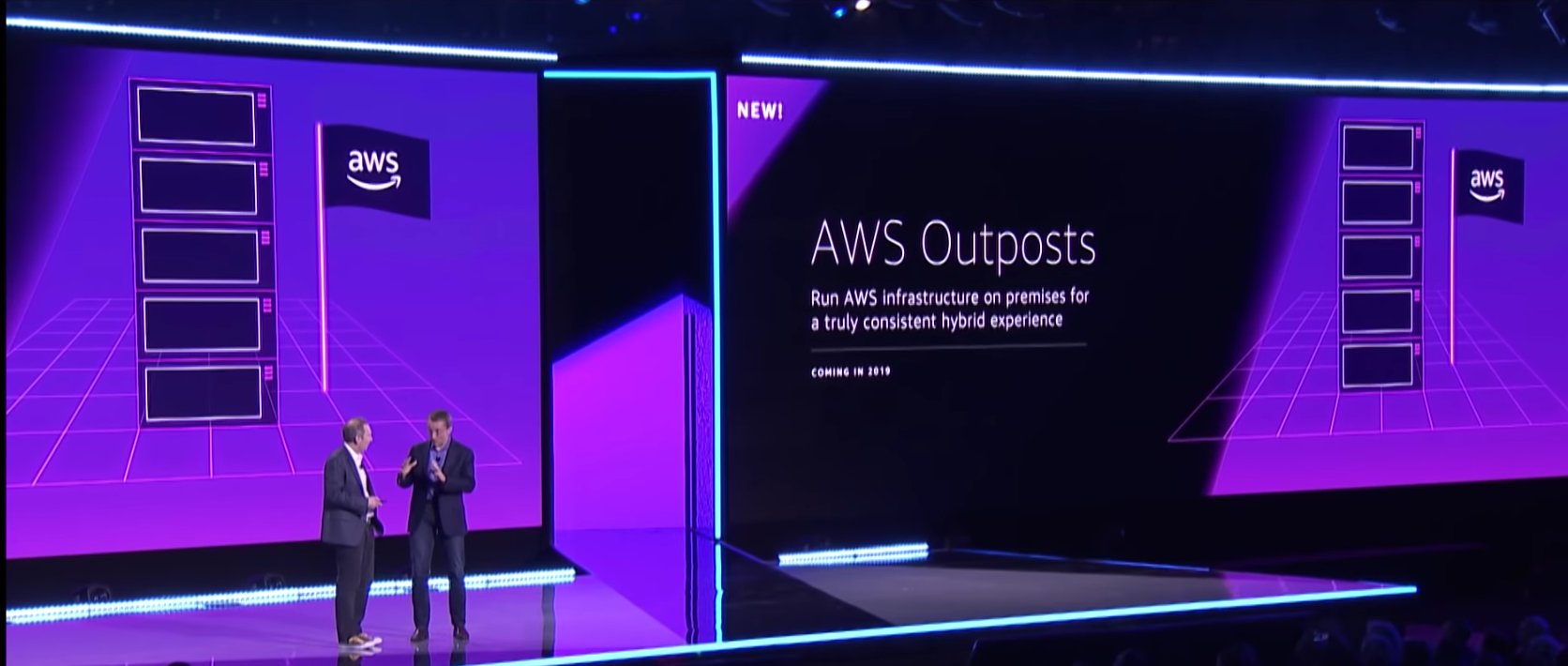
AWS Outposts

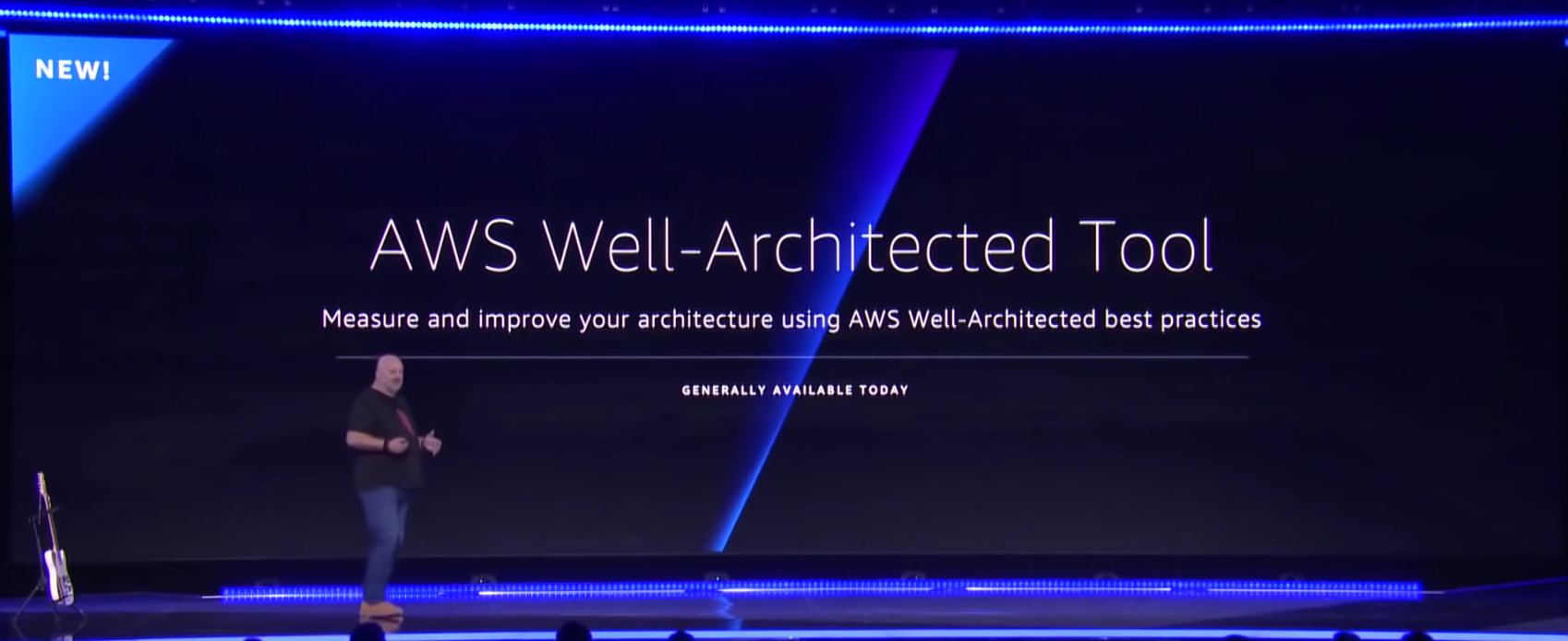
AWS Well Architected
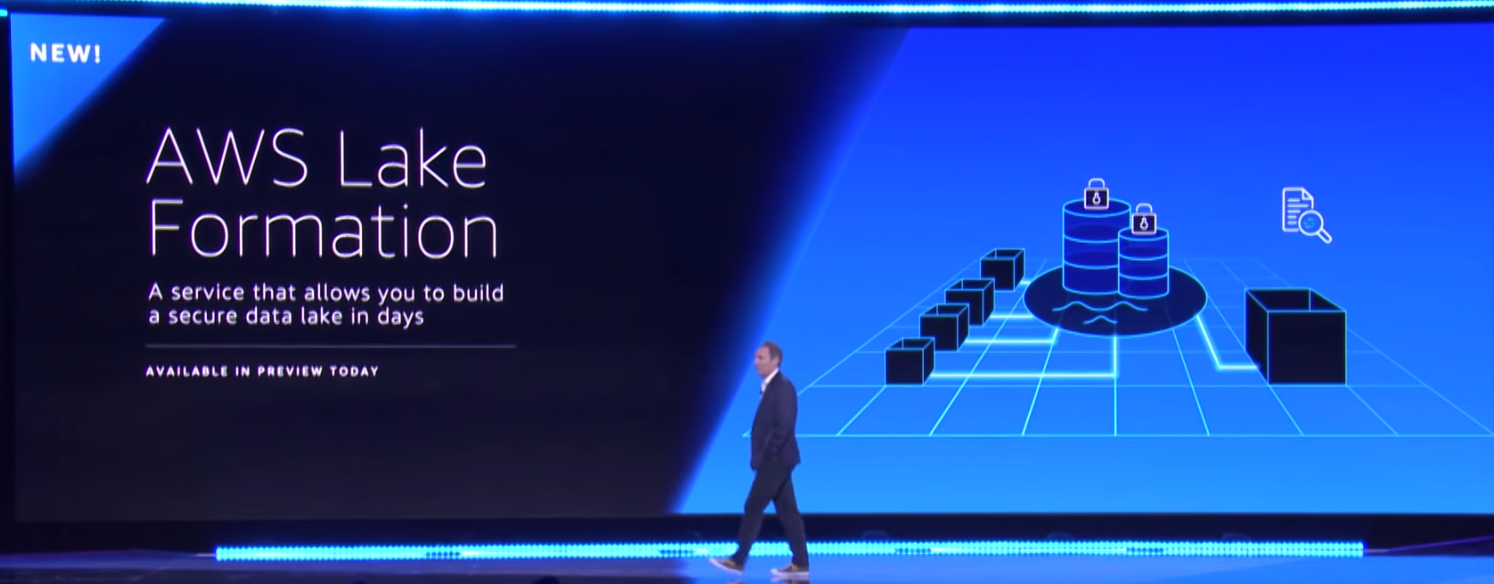
Lake Formation

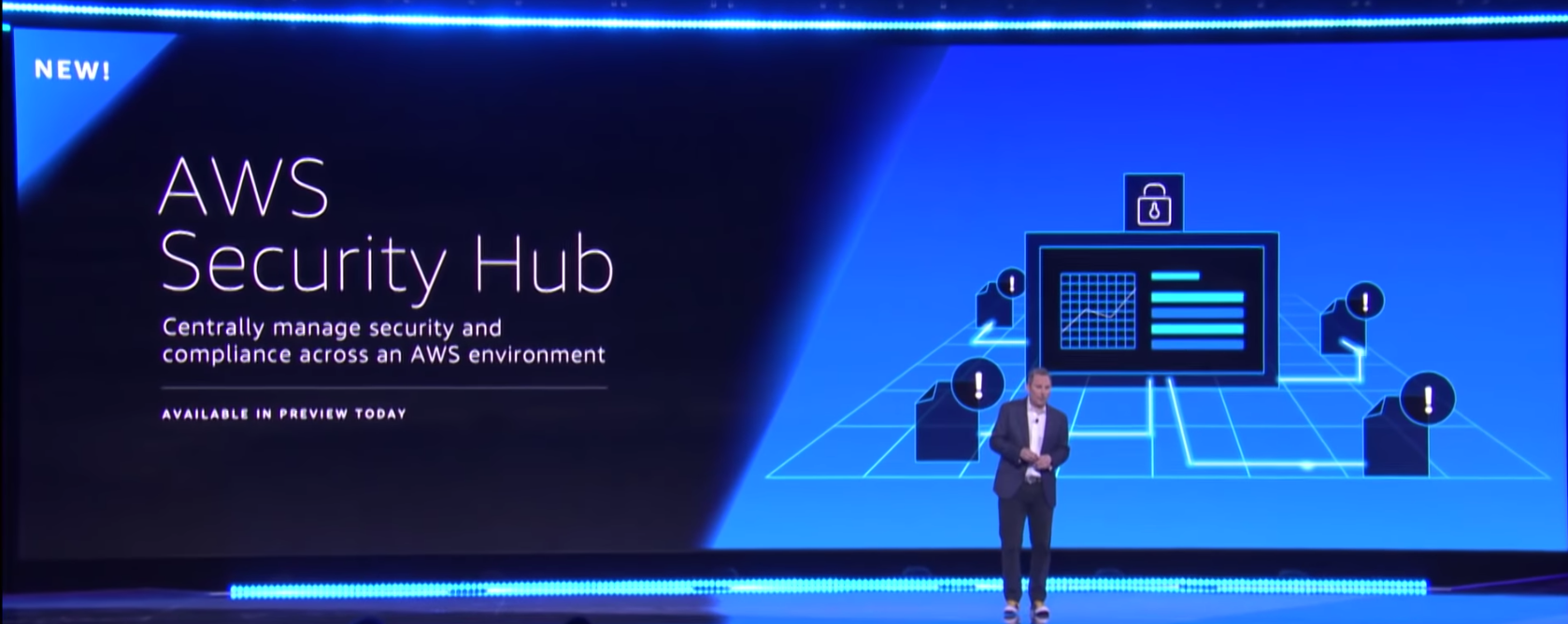
Security Hub

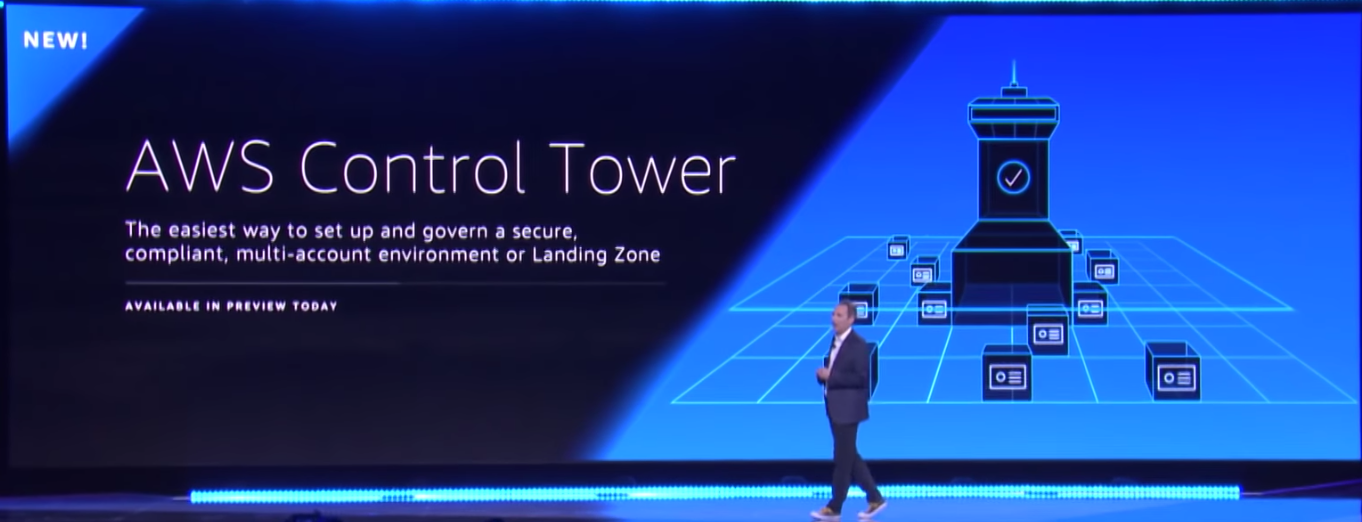
Control Tower

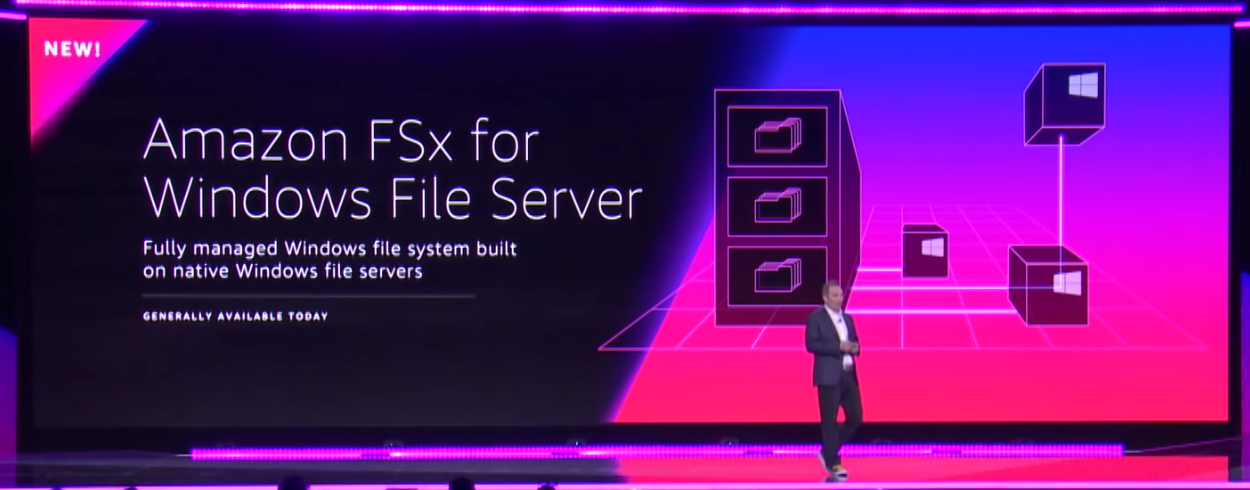
FSx


Next was containers or the lack of containers actually. There were no significant container announcements. ECS and EKS - were not mentioned once during the keynote. No new functionality, no new features. For the product that was probably the most demanded release that everyone wanted last year at re:Invent - this year - it was crickets all the way down. I was thinking that AWS was saving some glory and glitters for the Kubecon conference the week after - but all that really came out of there was the Containers Roadmap (which is actually amazing - because AWS never disclose what their roadmap is - at least not publicly. I suppose it is expected of them as their keeping up the image of Opensource contribution and championship).

And the last shocker was the fact that inbound traffic to S3 is now going to cost you money.. 

Wait, What? You are now charged for uploads to S3????
Well that is not entirely true. Traditionally - you do not pay for incoming traffic into S3 - it says that black on white.  

s3 Pricing


So no you are not charged for direct uploads to S3. But if you do it through another service that acts as a proxy to S3 - then that's different.

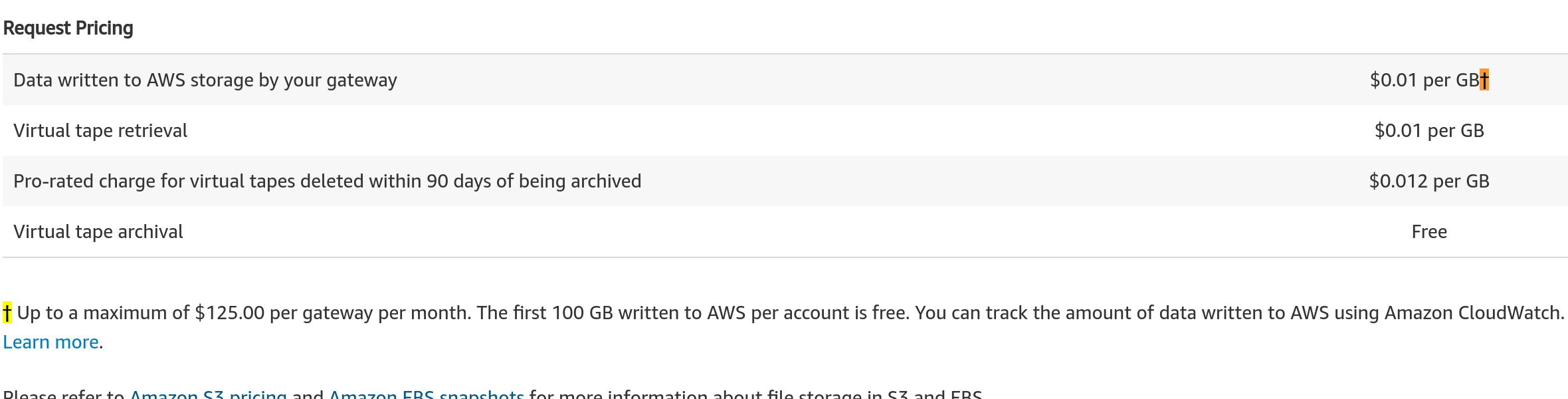
Storage Gateway was one such a service.
Storage Gateway

Here you are allowed 100GB for free each month and capped at a maximum of $125 / month. For a company that transfers hundreds and thousands of TB a month - the $125 is chump change which essentially makes it pretty much free.

And then came AWS Transfer for SFTP and the change that no-one really noticed.

SFTP Pricing
Whoa!! Not only are you being charged for 4x the amount of any other service,  you are not capped at a maximum monthly spend, and you get no free monthly uploads either.

You use it - you pay (and pay for it you will).

Next up was DataSync

Datasync Pricing


Again - same new price of $0.04/GB for transfer traffic into S3.

Pricing example

Their pricing example as well
If you were to do the exact same thing - but with regular S3 upload. 
If you perform a one-time migration of 50 TB of 16 MB files into Amazon S3 in US East (Ohio), it costs you the following to use S3 cli: 
(50 TB copied into S3 * 1024 GB * $0.00 / GB) + (1 S3 LIST request * $0.005 / 1000) + (50 TB / 16 MB S3 PUT requests * $0.005 / 1000)
= $0 + $0 + $16.38
= $16.38
That is one heck of a difference. Now I have not tested the difference in speed, or throughput you can get from Datasync - I am sure there is a difference in the data transfer speeds.

But for me this is troubling. The whole bloody world uses S3 (granted most of the traffic is going from S3 out of AWS). Are AWS planning a change in their pricing model? Even if it is $0.04/GB - this would be a huge channel of additional revenue for them. Something to ponder on.

The pricing model that is now attached to S3 uploads seems strange to me - especially if you are receiving the exact same thing through another route for free. If it would have been network traffic through the service - I would have easily been able to accept.
And last but not least, Werner Vogels finished his keynote on time this year. Well done and thank you for assisting in the effort of improving our experience at re:Invent this year.

Thoughts? Comments? 
Feel free to reach out to me on Twitter (@maishsk)

2014-03-17

VSAN - The Unspoken Truth

Last week VMware released the long awaited VSAN including the even more popular licensing information.

Today I would like to discuss what I see as one of the points that I have yet seen to be discussed regarding VSAN – and in my eyes the most problematic.

unspoken truth

An unspoken truth is something in life we all know to be true but to speak it is taboo.

Before I go in what this unspoken truth is of which I am talking about, I would like to congratulate the VSAN team on a job well done!! VSAN is something we have been waiting for – for a long time – and I voiced my comments before on the launch and its lack of licensing info – but that is now water under the bridge.

VSAN is a scale out storage solution – up to 32 nodes – which is a great thing. I am not going to go into the whole debate of - “Is this cheaper/better/faster/more reliable than a traditional SAN/All Flash Array?” – there are others who have already started to prepare VSAN calculators, price comparisons etc..

VSAN

VSAN is about flexibility – going from a configuration catered to high performance all the way to that catered to the needs of large storage capacity.

Here are the current VSAN Ready nodes (as of today’s date) on the VMware HCL.

PowerEdge T620 PowerEdge T620
PowerEdge T620 Primergy RX300
PowerEdge R720 PowerEdge R720 UCS C240 UCS C220

The Unspoken Truth

VSAN is not suitable for deployment on Blade servers.

  1. There are no VSAN Ready nodes that are Blades – only Rack mounts or Tower servers (who actually still deploys Towers in their datacenter anymore???)
  2. The number of disks that you can add to most blades is – yep two – that means one SSD and one Large SAS/SATA drive. Not enough for a decent VSAN node

We have now come to the conclusion that the flexibility is there – but just not for blades – which to me means, that if I would like to deploy a VSAN cluster – it will have to be on rack mounts.

What are the implications of such a decision?

  1. Larger Datacenter footprint. That means more power cables, more electricity, more cooling.
  2. Converged networking – is possible – but will usually require a minimum of 3 (perhaps 5) network cables per server.
  3. Central Hardware management – is going to be very difficult – compared to the Blade Chassis management provided by vendors today.
  4. This is actually the complete opposite of what the current industry trends – most companies have found the benefits of blades are highly beneficial to their environment – and this is the exact opposite direction.
  5. Change of current methodology and work practices – if today you are using blades – then you will have to move your virtualization workloads over to rack mounts.

Let me give a few examples.

    1. You have an established vSphere Infrastructure – all running on UCS/HP/Dell/IBM blades. To move over to VSAN – you will need to decide what workloads will be migrated to this new cluster – because VSAN is not (in its current version) accessible outside of the VSAN cluster. You will need to purchase new hardware for such a cluster – different to your standard deployment.
    2. To accommodate VSAN – it is recommended to have a dedicated 10Gb (actually 2 of them – for redundancy) for the VSAN traffic – that is above and beyond what you will need for each host for Mgmt, vMotion, OOB (iLO/IMM) and VM networking. that is a whole lot of ports that you will need.

Just to clarify once more – I am not saying that VSAN is not a good solution, it could very well be the perfect solution for the right use case. But it is not the be and and end all solution to all of your storage problems.

Do the math. For some of you it will be more than worthwhile – but for others, not so.

One more comment before I sign off.

I do see this as the second part in the direction that VMware is moving towards making the Virtualization Admin the “king of the castle” and the SDDC.

  1. Deploy NSX – and you now have full control of your network – relying on the Network Admin is a thing of the past.
  2. Deploy VSAN – and you now have full control of your storage – no need to ask for LUNS or storage space from the Storage group.

If only it was that simple – perhaps it will be one day, but I do not think that day has come …
Yet.

(Update March 18th, 2014) – This has brought on a very interesting discussion in the comments below and also some follow up articles from Christian Mohn -  VSAN – The Unspoken Future and from
Duncan Epping -  VSAN – The spoken reality. (Flattery will get you everywhere guys…).
That was the purpose – to make people think, voice their opinion and their thoughts.

2014-03-06

How to Launch a Product

I am not a marketing genius – I don’t pretend to be – and honestly don’t think that is my line of work. I am just a customer.

When you announce a product – the message should (IMHO) contain the following:

  • What the product/offering is.
  • The features / benefits – including technical documentation.
  • Availability date.
  • Cost.

VMware did this at VMworld – announcing the availability of NSX. And it included 2/4 above points.
Until today – approximately 5 months after “GA” – no-one outside of VMware has seen:

  1. Any technical documentationvsan
  2. Pricing

Today VMware did it again. They announced VSAN – including a date (estimated – Week of March 10). The technical documentation is out there – at least for those who were on the Beta program – which was open practically to whoever wanted to join. And yet – there was one important thing missing.

  • Pricing

It seems I am not the only one with this feeling – but if you are trying to sell me something – I would like to get the full picture when you announce it and not wait for the sequel to get all the information.

Here’s looking forward to the week of March 10th – for the rest of the info.

(This is not to say that the technology and product has no benefit – I am just a bit peeved about the way VMware has been “launching” their products as of late – and specifically those which are supposed to the complete game-changers, the products that are to lead the evolution and revolution of the SDDC/SDDE)

What do you think?

(p.s. – If you look really hard – you can already find the licensing costs on several places on the great WWW)

2013-01-15

Red Hat 6.4 Clustering Changes

I am pretty sure that this one escaped under the radar – because it was not well advertised.RHEL

Red Hat released on December 4th, 2012 their latest Beta of RHEL 6.4 – release notes can be found here.

So what has changed?

VMware PV Drivers

The VMware para-virtualized drivers have been updated to provide a seamless out-of-the-box experience when running Red Hat Enterprise Linux 6.4 in VMware ESX. The Anaconda installer has also been updated to list the drivers during the installation process. The following drivers have been updated:

  • a network driver (vmxnet3)

  • a storage driver (vmw_pvscsi)

  • a memory ballooning driver (vmware_balloon)

  • a mouse driver (vmmouse_drv)

  • a video driver (vmware_drv)

The other interesting tidbit was this:

Support for VMDK-based Storage

Red Hat Enterprise Linux 6.4 adds support for clusters utilizing VMware's VMDK (Virtual Machine Disk) disk image technology with the multi-writer option. This allows you, for example, to use VMDK-based storage with the multi-writer option for clustered file systems such as GFS2.

Up until now – according to this RedHat KB (Virtualization Support for High Availability in Red Hat Enterprise Linux 5 and 6) – the only way you could install a RedHat cluster on VMware was by using either an RDM (Physical/Virtual compatibility mode), a Raw Disk or in-guest iSCSI disks.

With this release it now changes – you can use a regular VMDK which means regular VMFS.

Virtualization Support for High Availability in Red Hat Enterprise Linux

I think that the time is right for VMware put up a page for RHEL clustering support – similar to the one they have for Microsoft Clustering. There is no such page existing today.

**Just as a side note for Red Hat 5.9 – neither of these features were added.**

2012-06-19

OpenIndiana Installation walkthrough - Part 4

This is Part 4 of a series of posts explaining how to configure OpenIndiana as NAS storage device. The series is made up of the following parts:

  • Background information about OpenIndiana and OS installation
  • Network configuration and Setting up storage
  • Presenting storage to your Hosts with iSCSI and/or NFS
  • Performance testing

    Today we will go into the performance I was able to get out of the OpenIndiana appliance that I have installed.

    But first a small bit of detail around the hardware setup this is actually running on.

    This a lab – therefore the setup is not optimal.

    I am using an HP DC7800 PC for an ESXi imagehost. The PC can hold 4 SATA devices and up to 8GB of RAM.
    I also have 2 hard disks in the Host – 1 Western Digital Caviar Blue WD2500AAKS 250GB 7200 RPM 16MB Cache SATA 3.0Gb/s 3.5" where I have ESX installed and use as a local storage, and also 1 Intel® Solid-State Drive 520 Series – 180GB. And on this drive I have installed OpenIndiana. 


    The setup was identical to the walkthrough from the previous stages, with some exceptions.

    The VM has 10 VMDK’s attached to it – each 15GB in size and they are all connected to a separate SCSI adapter (SCSI1).

    image

    I then created a RAIDZ1 volume of all of these disks and presented this as both NFS and iSCSI storage.

    root@nas1:~# zpool list -v
    NAME          SIZE  ALLOC   FREE  EXPANDSZ    CAP  DEDUP  HEALTH  ALTROOT
    disk1         146G  66.1G  79.9G         -    45%  1.00x  ONLINE  -
      raidz1      146G  66.1G  79.9G         -
        c4t0d0       -      -      -         -
        c4t1d0       -      -      -         -
        c4t2d0       -      -      -         -
        c4t3d0       -      -      -         -
        c4t4d0       -      -      -         -
        c4t5d0       -      -      -         -
        c4t6d0       -      -      -         -
        c4t8d0       -      -      -         -
        c4t9d0       -      -      -         -
        c4t10d0      -      -      -         -

    root@nas1:~# zfs list
    NAME                       USED  AVAIL  REFER  MOUNTPOINT
    disk1                      103G  25.1G  51.9K  /disk1
    disk1/iscsi_1              103G  69.4G  58.8G  -
    disk1/nfs_1                317M  25.1G   317M  /disk1/nfs_1
    rpool                     6.30G  5.45G  45.5K  /rpool
    rpool/ROOT                3.20G  5.45G    31K  legacy
    rpool/ROOT/openindiana    10.6M  5.45G  1.95G  /
    rpool/ROOT/openindiana-1   816M  5.45G  1.87G  /
    rpool/ROOT/openindiana-2  2.39G  5.45G  1.96G  /
    rpool/dump                1.50G  5.45G  1.50G  -

    OpenIndiana has 3 NICs (eth0-2) where eth1 & eth2 are used for iSCSI traffic and eth2 is used for NFS traffic (the reason being I wanted to check the multipathing options)

    The Openindiana VM was configured with two configurations. 2GB RAM and 4GB RAM. The test I performed was Max IOPs (512b block 0% Random – 100% Read) from VMware’s I/O Analyzer 1.1.

    The tests were done on:

  • Native SSD (not through OpenIndiana)
  • iSCSI LUN
  • NFS mount

    And here are the results


    Native SSD


    Maximum IOPs 9,364.23 with ~2.6 ms latency

    image

    image

    image

    msaidelk-esx2-vmhba0-iopsmsaidelk-esx2-vmhba0-latencymsaidelk-esx2-vmhba0-throughput


    NFS

    Maximum IOPs 9,364.23 with ~2.6 ms latency

    image

    image

    image

    The interesting thing you may notice here about the last graphic – is that the NFS disk is actually pushing a large amount of IO requests but the underlying physical disk is actually not really working very hard.image

    Memory\Kernel MBytes913
    Memory\NonKernel MBytes2461
    Group Cpu(416665:nas2)\% Used64.2
    Network Port(vSwitch2:50331656:vmk3)\MBits Received/sec85.5

    iSCSI

    Maximum IOPs 14,331 with ~1.3 ms latency

    image

    image

    image

    msaidelk-esx2-vmhba0-iopsmsaidelk-esx2-vmhba0-latencymsaidelk-esx2-vmhba0-throughputmsaidelk-esx2-vmhba33-iopsmsaidelk-esx2-vmhba33-latencymsaidelk-esx2-vmhba33-throughput

    Again note the actual IO to the SSD

    image

    The numbers are quite impressive as you can see.

    What I learned from this:

    1. NFS/iSCSI performance was very much the same – besides the fact the NFS put a much higher load on the OpenIndiana server than iSCSI did (something like 60 times more CPU usage!)
    2. The performance achieved through OpenIndiana was higher than native disk – due to the fact that OpenIndiana makes use of RAM as a caching mechanism.

    My apologies for the delay in the last part of this series.

  • 2012-05-15

    OpenIndiana Installation walkthrough - Part 3

    This is Part 3 of a series of posts explaining how to configure OpenIndiana as NAS storage device. The series is made up of the following parts:
    1. Background information about OpenIndiana and OS installation
    2. Network configuration and Setting up storage
    3. Presenting storage to your hosts with iSCSI and/or NFS
    4. Performance testing
    At the end of Part 2 we had the network set up, VMware Tools installed, additional disk space added to the VM, and a zpool created.
    What we will go through in this part is:
    1. Configuring NFS and iSCSI services
    2. Creating a Volume for iSCSI
    3. Create an NFS folder
    4. Create a LUN and share it with an iSCSI
    5. Export NFS Volume and set export parameters
    6. Mount NFS and iSCSI storage
    So first we need to turn on the iSCSI and NFS services. NFS is just to start a service, iSCSI has a bit more to it.
    svcadm enable -r iscsi/target:default
    svcadm enable network/nfs/status

    enable iscsi and nfs
    Now we create the target with
    itadm create-target
    You can check the status with
    itadm list-target
    create target
    Create the volume and the NFS folder (I will create a small 2GB Volume) and then query for status

    zfs create -V 2G disk1/iscsi_1
    zfs create disk1/nfs_1

    create volumes
    zfs list
    list volumes
    Here you can see disk1 is 5GB (USED+AVAIL), disk1/iscsi_1 is 2GB is size (thin provisioned) and the disk1/nfs_1 has 3GB space left in total
    Now we create the iSCSI LUN with
    sbdadm create-lu /dev/zvol/rdsk/disk1/iscsi_1

    and add it to the masking of the iSCSI initiator with the GUID that was just created
    stmfadm add-view 600144f0ccf40a0000004fb114700002
    Just to check that all is set correctly list the LUNs
    stmfadm list-lu

    List the masking
    stmfadm list-view -l 600144F0CCF40A0000004FB114700002
    iSCSI LUN
    One last thin left to do is to set the NFS export permissions with the following (you will need either the FQDN of the host or the correct IP for the export permissions)
    zfs set sharenfs=on disk1/nfs_1
    zfs set sharenfs=root=msaidelk-esx.maishsk.local disk1/nfs_1
    zfs get mountpoint,sharenfs disk1/nfs_1

    NFS shares
    And that is it – the storage configuration is complete.
    Now we go over to the ESX and mount the storage.
    First the iSCSI volume
    Add target
    After a rescan of the adapter I now have a new 2GB LUN
    New LUN
    On to NFS.
    Add NFS
    We now have a new NFS storage mount
    New NFS
    There you have it a fully working storage appliance on OpenIndiana.
    In Part 4 I will show some Performance statistics I am getting out of this VM.