Showing posts with label Workstation. Show all posts

2013-05-21

VMware Workstation & Fusion Technology Preview 2013

VMware have just released a new public beta for VMware Workstation

The VMware Workstation team is providing public access to the VMware Workstation Technology Preview to gather feedback from users on a wide range of hardware and software configurations. The VMware Workstation Technology Preview includes changes to the core virtualization engine and new capabilities we are exploring.

What's New - Read the full release notes

VMware Hardware Version 10 - This Technology Preview introduces hardware Version 10.   Hardware versions introduce new virtual hardware functionality and new features while enabling VMware to run legacy operating systems in our virtual machines.  

16 vCPUs - In this Technology Preview VMware Workstation is shipping Hardware Version 10 and has enabled our users to create and run virtual machines with up to 16 virtual CPUs.  Please let us know how this performs running your workloads.  We have run CPU benchmarks, encryption/decryption and encoding/decoding programs to characterize the performance, but we are interested in what results you get running other applications.

SSD Passthrough - Windows 8 is capable of detecting when it is being run from a solid state drive (SSD) and optimizes itself for this hardware.   In this Technology Preview, Workstation can detect when the Virtual Machine Disk file is being stored on an SSD drive and pass this information to the guest operating system to enable Windows 8 to make the same optimizations when it is running in a virtual machine.

Expiring Virtual Machines - VMware has enhanced the capabilities of Restricted Virtual Machines to include the ability to expire the virtual machine on a certain date at midnight UTC time (for now).  The intent of this feature is to enable customers to create virtual machines to be shared with employees, students, customers, contractors etc. that will run until the date that that you set. 

New Converter - This Workstation Technology Preview includes a preview of the next version of VMware Converter.   The Converter enables users to make Physical machines virtual.  This version of the Converter includes support the following enhancements:

  • Guest operating system support for Microsoft Windows 8 and Microsoft Windows Server 2012
  • Guest operating system support for Red Hat Enterprise Linux 6
  • Support for virtual and physical machine sources with GUID Partition Table (GPT) disks
  • Support for virtual and physical machine sources with Unified Extensible Firmware Interface (UEFI)
  • Support for EXT4 file system
  • Support for vSphere 5.1 virtual machine hardware version 9

Pre-Released OVFTool - The Open Virtual Machine Format (OVF) is a virtual machine distribution format that supports sharing virtual machines between products and organizations.  The VMware OVF Tool is a command-line utility that enables a user to import and export OVF packages to and from a wide variety of VMware products.

User Interface Enhancements:

There are other small changes that have been included in this release that you may discover and we are continuing to add more features but here are a couple of items that you may come across:

Windows 8 Unity Mode Support - We are continuing to improve on how our Unity Mode user-interface works with Microsoft's "Modern UI" or the "Microsoft Design Language" (The new tile interface in Windows 8 formerly known as Metro).   We have made some improvements and would like to know what you think!

Multiple Monitor Navigation - When running with 2,3,4 and even 5 or 6 monitors it has been frustrating to use the full screen mode in Workstation and toggle through each combination of monitors to get to the one you want.  The fullscreen toolbar now has an option to choose your configuration and jump to it immediately.

Power Off Suspended Virtual Machines - I am sure that this has happened to you as often as it happens to me.   You want to change the configuration of a virtual machine in your library that you use all of the time.   You open up the virtual machine settings dialog and everything is greyed out because the virtual machine is currently suspended.    Instead of powering on the virtual machine and waiting for it to boot up before powering it down to make the changes, the Technology Preview lets you simply power off the suspended Virtual Machine (as long as you don't care about what is in its memory).

Remote Hardware Upgrade - When working with virtual machines running remotely on vSphere or on another instance of Workstation, you can now remotely upgrade the Hardware version..

There is also a new release of VMware Fusion as well

VMware Labs is providing public access to the VMware Fusion Technology Preview 2013 to gather real-world feedback from users on a wide range of hardware and software configurations. The VMware Fusion Technology Preview includes changes to the core virtualization engine and new capabilities we are exploring.

  • Creating large VMs on appropriately equipped Macs (16 vCPUs, 64GB RAM)
  • Dictation Support
  • Network handling when running VMware ESX as a guest
  • Restricted virtual machines with an expiration date
  • PC Migration Assistant
  • Virtual Machine Compatibility pane under Settings
  • Improved handling of the Command/Windows key under Windows 8
  • General stability and correctness

What's New? - Read the full release notes

Features

  • New virtual Hardware Version 10 with support for up to 16 vCPUs on Macs with more than 16 cores.
  • Support for up to 64GB of RAM per VM on Macs with sufficient memory.
  • Support for Mountain Lion Dictation.
  • Updated PC Migration Assistant.
  • Support for expiring a restricted virtual machine after a particular date.

User Interface

  • Redesigned Settings > Compatibility to provide more information about the limits associated with each virtual hardware version and product compatibility.
  • A virtual machine can now be rebooted to BIOS/EFI by performing the following actions: Settings > Startup Disk > Restart to firmware. The “Restart to firmware” option is shown when the “Alt/Option” key is held down.

Operating Systems

  • Improved handling of the Command key to prevent accidentally entering “Metro-style” when running Windows 8.
2012-08-16

Deleting a VM in VMware workstation

Just a small and silly thing I came across today.

I almost ran out space on my hard drive today. You could say – then go and get a bigger one – well that is true but I needed the space fast and found that I had a number of old VM’s on my laptop that I thought I had deleted – but it turned out I did not.

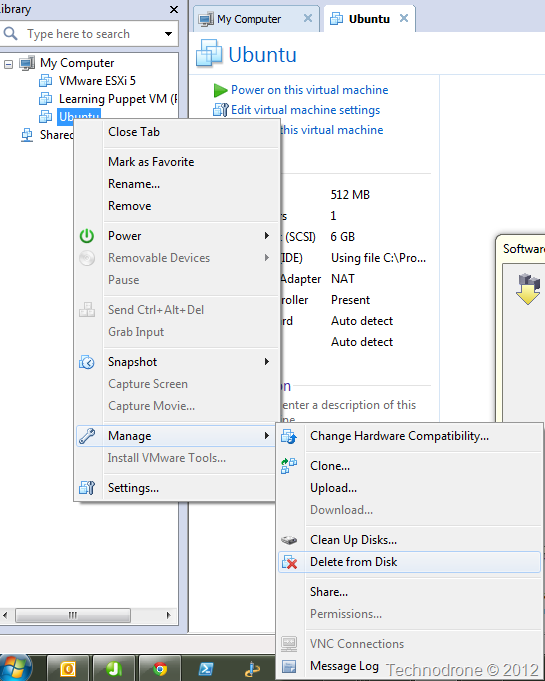
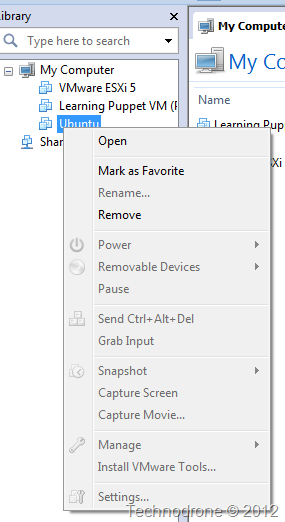
When you right-click on a VM that is not in focus you will be presented with the following menu:

No Delete

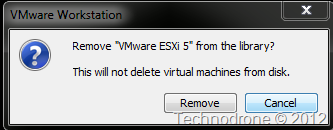
You would think that if you click remove – then it would remove the VM – but no… and you are presented with a popup telling you that.

This will not Delete

But there is no option to delete the VM. So where is it? If you select the actual VM and then right-click – you will be presented with a different menu

Delete from Disk

So that is how you delete a VM (and its files!!) from Workstation.

2010-06-08

VMware Tools Icon Changed – Did you notice?

While installing VMware tools on a virtual machine this week on VMware Workstation 7.1
(build-261024) I noticed that the small icon that appears to show that VMware tools are installed looked different.


Before

After

image image


Will it be the same for the next update of ESX??

2010-05-26

VMware Player 3.1 - New Release

VMware Workstation 7.1 was released yesterday.

With it - was the release of it's baby brother/sister - VMware Player 3.1

What's New?

This release provides support for the following host and guest operating systems:

Operating System Host and Guest Support

Ubuntu 8.04.4

Host and guest
Ubuntu 10.04 Host and guest
OpenSUSE 11.2 Host and guest
Red Hat Enterprise Linux 5.5 Host and guest
Fedora 12 Guest
Debian 5.0.4 Guest
Mandriva 2009.1

Guest


New Features in VMware Player


  • OpenGL 2.1 support for Windows 7 and Windows Vista guests — Improves the ability to run graphics-based applications in virtual machines.
  • Improved Graphics Performance — Enhanced performance with better benchmarks, frame rates, and improved rendering on Windows 7 and Windows Vista guests allows you to run various graphics-based applications. In addition, major improvements in video playback enable you to play high-resolution videos in virtual machines.
  • Automatic Software Updates — Download and install VMware Tools and receive maintenance updates when available.
  • Direct Launch — Drag guest applications from the Unity start menu directly onto the host desktop. Double-click the shortcut to open the guest application. The shortcut remains on the desktop after you exit Unity and close VMware Player.
  • Autologon — Save your login credentials and bypass the login dialog box when you power on a Windows guest. Use this feature if you restart the guest frequently and want to avoid entering your login credentials. You can enable Autologon and use direct launch to open guest applications from the host.
  • OVF 1.1 Support — Import or export virtual machines and vApps to upload them to VMware vSphere or VMware vCloud. The VMware OVF Tool is a command-line utility bundled in the VMware Player installer. Use this tool along with VMware Player to convert VMware .vmx files to .ovf format or vice versa. VMware recommends that you use the OVF command-line utility. For more information, see the OVF Web site and OVF Tool User Guide.
  • Eight-Way SMP Support — Create and run virtual machines with a total of up to eight-processor cores.
  • 2TB Virtual Disk Support — Maximum virtual disks and raw disks size increased from 950GB to 2TB.
  • Encryption Enhancements — VMware Player includes support for Intel's Advanced Encryption Standard instruction set (AES-NI) to improve performance while encrypting and decrypting virtual machines and faster run-time access to encrypted virtual machines on new processors.
  • Memory Management — User interface enhancements have simplified the handling of increased virtual memory capacity.
  • User Experience Improvement Program — Help VMware improve future versions of the product by participating in the User Experience Improvement Program. Participation in the program is voluntary and you can opt out at any time. When you participate in the User Experience Improvement Program, your computer sends anonymous information to VMware, which may include product configuration; usage and performance data, virtual machine configuration; usage and performance data, and information about your host system specifications and configuration.
    The User Experience Improvement Program does not collect any personal data, such as your name, address, telephone number, or email address that can be used to identify or contact you. No user identifiable data such as the product license key or MAC address are sent to VMware. VMware does not store your IP address with the data that is collected.
    For more information about the User Experience Improvement Program, click the Learn More link during installation or from the VMware Player Preferences menu.

The full details and Known issues can be found in the Release Notes

2010-02-08

VMware workstation - Small Rant

Every now and again VMware releases an update for their products, among those are also VMware Workstation. I have a small issue with the whole thing.

Firstly, I must say this is only regarding those who are running Workstation on Windows - from what I hear this does not happen on on a Linux Host OS.

When you install an update for Workstation - you are required to reboot the machine. That would be fine and more than acceptable - but this has to be done twice. Workstation cannot update the software it has to uninstall the previous version, reboot and then install the new version and then reboot again.

All in all the the process took 35 minutes from start to finish (Uninstall - Reboot - Install - Reboot).

Is there no way that VMware can make this process less time consuming??

Thanks @jasonboche @wilva for the empathy :)

2010-01-31

New Releases from VMware

Workstation 7.0.1 - Release Notes

What's New

Workstation 7.0.1 is a maintenance release that resolves some known issues. This release of VMware Workstation adds the following new support:

New Support for 32-Bit and 64-Bit Operating Systems

This release provides support for the following host and guest operating systems:

    Operating System
    Host and Guest Support
    Windows 2008 R2 Host and guest
    Windows Vista SP2 Host and guest
    Ubuntu 9.10 Host and guest
    RHEL 5.4 Host and guest
    CentOS 5.4 Guest
    Oracle Enterprise Linux 5.4 Guest


vCenter Server 2.5 Update 6 - Release Notes

What's New

Guest Operating Systems Customization Improvements

Customization support for the following guest operating systems has been added in this release:
For more complete information about supported guests included in this release, see the VMware Compatibility Guide.

  • Windows 7 Enterprise (32-bit and 64-bit)
  • Windows 7 Ultimate (32-bit and 64-bit)
  • Windows 7 Professional (32-bit and 64-bit)
  • Windows 7 Home Premium (32-bit and 64-bit)
  • Windows Server 2008 R2 Standard Edition (64-bit)
  • Windows Server 2008 R2 Enterprise Edition (64-bit)
  • Windows Server 2008 R2 Datacenter Edition (64-bit)
  • Windows Server 2008 R2 Web Server (64-bit)

Support for Firefox 3.x Browsers with VirtualCenter Web  Access

This release adds support for Firefox 3.x browsers with VirtualCenter Web Access. Firefox 3.x is not a supported browser for ESX Server 3.5 Update 5 Web Access with this release.

LifeCycle Manager 1.1 - Release Notes

What's New

VMware vCenter Lifecycle Manager (LCM) 1.1 release enhances the performance, robustness, and scalability of LCM and resolves a number of known issues.

The LCM 1.1 release runs on VMware vCenter Orchestrator 4.0.1. To run LCM 1.1, you must install the version of Orchestrator (4.0.1 Build 4502) that accompanies the LCM 1.1 download. See the vCenter Lifecycle Manager 1.1 Installation and Configuration Guide for installation instructions.

2009-10-14

How VMware helps combat Viruses

I am not talking about a new Anti-virus solution or a new product, even though VMware does offer VMsafe for this exact purpose. image

Today I was hit with a very clever phishing attack.

Details can be found here. In short a customized email that was sent to large number of employees specifically addressed and personalized.The link was to a a site that looked like a Outlook Web Access page with a message telling that the IT support should click on the file to update your settings. Of course the file is a Trojan which does all kinds of nasty things as you can see on this report.

Now how is this connected to VMware? Well I knew this was a virus. But we needed to assess what it was doing, and the only to do that is to run the file. But knowingly infecting your computer with something like this is not the brightest idea to put it mildly, and who can predict what it will do?

But what if you had a machine that you could run the virus on, disconnected from the network, record the actions, export log files etc. and then return it back to the original state?

Do I hear anyone say a VM? Anyone?????

So this is how it went

  1. Workstation VM.
  2. Host-Only Network
  3. Snapshot VM
  4. Disconnect VM network card
  5. Import exe file (virus) with USB key
  6. Start up Wireshark
  7. Start up Procmon
  8. Run exe file
  9. Record all actions
  10. Stop Procmon and Wireshark capture
  11. Save captures for further analysis
  12. Export all to USB key.
  13. Revert VM snapshot to previous state.
  14. Repeat process twice more

Now if I wanted to I could have reverted the snapshot back the previous state before the virus had touched it, and continued to use it, But since this is a test VM that I use for these kind of incidents, I trashed it. Better be safe than sorry.

Logs were analyzed, virus activity was identified and measures were taken to protect the network. Report sent to AV Software provider to provide updated signature files that will identify and remove the virus.

You just gotta love the wonders of Virtualization, don't ya?

Hope you enjoyed the ride!

2009-07-16

VMware Workstation & Unity

One of the little known features but, at least I think so, the coolest gems in the last few versions of VMware Workstation is Unity Mode.

Access applications within virtual machines as if they were part of the host operating system desktop with “Unity” view

Two perfect use cases:

  1. In most big corporate environments - Microsoft Exchange and Microsoft Outlook are the de-facto tools used for email. If you are like some of those who refuse to use Microsoft OS - then you have to resort to using Evolution, which does not always work well.
    Unity to the rescue, I can run whatever OS I would like and run a windows virtual machine with for running Outlook, and all I need is to activate Unity and you will have an window (almost like any other) in you Linux OS.
  2. Some organizations (do use Exchange) did not move to LCS or OCS. Why? A number of reasons. Too much money for the CAL's. No need. It works. So for one we are still using Windows Messenger 5.1 for our internal messenger software. Starting from Windows Vista - every time you open a chat window and the screen scrolls, the Application crashes. This has been documented numerous amounts of times on the web, with no solution. 
    Unity to the rescue. I can now run  Windows Vista / 7 /Server 2008 and have a VM with my Messenger client open without having to run another whole desktop for this purpose

A short demo about Unity

And yeah yeah, I know. Time to change the Messenger client, I hear ya!

2009-04-02

New VMware Product Releases

NO! it is not the new ESX version! (there are other products that VMware sells besides ESX you know)

Besides Update 4 for ESX and ESX3i that were released last week:

VMware Player 2.5.2

VMware Workstation 6.5.2

VMware Server 2.0.1

What's New

With this release of VMware Player, certain new features and support have been added.

Support for New Guest Operating Systems
VMware provides support for the following operating systems for Player 2.5.2:
  • Windows Vista Service Pack 1 and Service Pack 2
  • Asianux Server 3.0 Service Pack 1
  • openSUSE 11.1
  • Ubuntu 8.10
  • Ubuntu 8.04 LTS
VMware provides experimental support to the following operating systems for Player:
  • Asianux Server 3 Service Pack 1
  • Fedora 11
  • FreeBSD 7.1
  • Mandriva Linux 2009
  • Microsoft Windows 7
  • Novell SLE11.0
  • Red Hat Enterprise Linux 5.3
  • Red Hat Enterprise Linux 4.8
  • Sun Solaris 10 Update 6
  • Ubuntu 9.04

Besides the new operating systems that were supported – there are several other issues that were addressed with each release.

Go forth and Virtualize!!

2008-06-29

Vmware to the rescue again

Well a colleague of mine had an issue today. A physical server running VMware server with 2 vm's on it. One VM's disk "exploded" and we were left with 0% (yep that is right) free space on the HD of the physical server.

Now if this was a small VM then that would not be a problem but the vmdk was 120 GB in size (even though inside the VM it was only using 40GB). So to remove the file from the server would have taken too long.

Solving the problem was one of two options:
  1. Run Vmware converter and therefore resize the disk.
  2. Hook up to the the Physical server via a share from a machine running VMware workstation.
We chose the latter (which was a bit more difficult to accomplish because the physical server was running Linux). Installed Samba and configured a share on the physical server. Opened the VM from a workstation. Added an additional HD (vmdk) with 50gb of space, and ghosted Disk 0 to Disk 1.

Process took something like 30 minutes. Booted the machine off the new vmdk. Ran through the tests and deleted the old 120GB vmdk.

You gotta love VMware products!!!