Showing posts with label ESX3i. Show all posts

2009-11-11

Patching your ESXi Host – Without vCenter

VMware Update Manager is the Enterprise tool for Patching your ESX Hosts and for some also the tool used to patch your Windows / Linux Guests as well.

This is all fine and dandy, but what is you do not have all of your ESXi hosts connected to your vCenter?

Why would you so that – you may ask? Well in my environment, we have several labs that are running their Environment on a ESXi Whitebox,with the free ESXi License. No vCenter, and central management is not that easy.

Now you could update all of these hosts with the VMware infrastructure Update Client and I showed in a previous post – how you can upgrade from ESX3i to ESX4i with this tool. To update the patches is more or less the same.

Today I was asked to automate this process for a number of ESX3i hosts that were all at
build 123629 (ESX3i U2) and update them to build 199239 (ESX3i U4).

I did this with the GUI client, but it was too cumbersome, so I looked for another method.

I downloaded the package from VMware. This contents of the zip file are below.

image

As you can see the contents of this bundle contain 3 separate Updates.

(The three ESXi patches for Firmware "I", VMware Tools "T," and the VI Client "C" are contained in a single offline "O" download file.)

After Unpacking the 3 patches I was left with this:

image 

In each folder there is an exe file:

image

The Command Syntax:

C:\ESXe350-200910402-T-BG>remoteInstall.exe

Allowed options:
  -? [ --help ]         Display program usage

  -h [ --host ] arg     ESX host name
  -u [ --userName ] arg User name
  -p [ --password ] arg Password

So all you need to do is:

remoteInstall.exe –h <HOSTNAME> –u <USERNAME> –p <PASSWORD>

While the patch is installing the output on the screen is is the progress:

progress: 0
progress: 5
progress: 7
.
.
.
progress: 100

Run this for both 3 patches, reboot your ESXi Host, and you are done

To automate the process I created  a small batch file update.bat (I did not use Powershell – because not all the end-users have Powershell installed – YET!! )

echo off

set host=%1
set user=%2
set password=%3

if "%1" == "" goto error
if "%2" == "" goto error
if "%3" == "" goto error

for /f "tokens=*" %%i in ('dir *. /b') do (
cd %%i
echo Installing patch %%i .....
remoteinstall.exe -h %host% -u %user% -p %password%
cd ..
)
echo Patching Complete !!

:error
echo ==========================================================
echo = Missing command line parameter!
echo ==========================================================
echo =
echo = Command Line Parameters:
echo =         update.bat hostname/ip username password
echo =
echo = Example:
echo =         update.bat 1.1.1.1 root 123456
echo ==========================================================
goto end

:end


The script accepts 3 parameters: user host password, for example:

update.bat myesxhost root 123456

Reboot your host – and yep you are upgraded.

And thanks to Dave Mishchenko for the information.

2009-08-24

What Happened to Export a VM in ESX4i?

I have been meaning to blog about this for a while so hear it is.

One of the features I used in ESX3i was the option to export a VM once it was powered off. This made the option of moving a VM off a stand-alone host to different Storage on different hosts a very easy process.

In ESXi 3.5

image 

And save it anywhere on your local Drive

image

But for some reason this has disappeared from ESX4i.

image

The option is grayed out.

The only way to export a VM from a standalone host is to use VMware Converter.

This was done on a stand-alone host - without vCenter, virtual machine was powered off using a free license.

Anyone know why this was removed?

2009-08-13

ESXi patches - My Response to Jeff Woolsey

Jeff Woolsey posted a comparison of disk footprint of ESXi and Windows 2008 Hyper-V server. Not getting into what I think of it yet, just a few facts and misconceptions before I start.

Since then these patches have been released for Windows 2008. I could not find a list of specific patches for Microsoft Hyper-V server 2008 R1 - because it is not listed as a product under Microsoft's Security site - not under Microsoft Hyper-v Server, Hyper-V, Windows Hyper-V, the only thing that I could find which was remotely was for Windows Server 2008.

image image image image

I assume that the security patches that Jeff spoke about here in this paragraph were patches that were released for Windows 2008, seeing the lack of anything else that Microsoft defines as a product called Microsoft Hyper-V server 2008 R1 I looked for patches that released for Windows Server 2008 and that were applicable to Core Edition (because as I understand, Hyper-v runs on a version of Core edition). So if Hyper-V server is a product - then define it as such, if not then it is still windows and need to be patched like windows

image

It is very nice that Jeff started to compare all patches from January 1, 2008 for both Systems but he forgot to mention that Hyper-V RTM'ed on June 26, 2008. Seeing that So I think it should be fair that you should start comparing from July 1, 2008 for both products.

Below is a list of patches that were released for Windows 2008 and were applicable to core Edition.

MS08-040 - Yes, you must restart your system after you apply this security update 39.8 MB - 82.3 MB

MS08-038 - Yes, you must restart your system after you apply this security update. 7.1 MB

MS08-037 - Yes, you must restart your system after you apply this security update. 428 KB

MS08-047 - Yes, you must restart your system after you apply this security update. 447 KB

MS08-049 - Yes, you must restart your system after you apply this security update. 330 KB

MS08-067 - Yes, you must restart your system after you apply this security update 417 KB

MS08-061 - Yes, you must restart your system after you apply this security update 1.2 MB

MS08-062 - Yes, you must restart your system after you apply this security update 475 KB

MS08-063 - This update does not require a restart. 375 KB

MS08-064 - Yes, you must restart your system after you apply this security update 2.4 MB

MS08-068 - Yes, you must restart your system after you apply this security update 327 KB

MS09-001- Yes, you must restart your system after you apply this security update 371 KB

MS09-004 - Yes, you must restart your system after you apply this security update 39.8 MB

MS09-006 - Yes, you must restart your system after you apply this security update 1.2 MB

MS09-007 - Yes, you must restart your system after you apply this security update 363 KB

MS09-013 - Yes, you must restart your system after you apply this security update 427 KB

MS09-012 - Yes, you must restart your system after you apply this security update 3.7 MB

MS09-015 - Yes, you must restart your system after you apply this security update 1.9 MB

MS09-022 - Yes, you must restart your system after you apply this security update 612 KB

MS09-026 - Yes, you must restart your system after you apply this security update 768 KB

MS09-025 - Yes, you must restart your system after you apply this security update 1.2 MB

And let us not forget Windows Server 2008 SP2 with the size of 577.4 MB

Below on are the Patches released for ESX3i Starting from February 2008 (Yes I gave ESX and extra month)

ESXe350-200904401-O-SG   Download Size: 221M    System Impact :  VM Shutdown &  Host Reboot

ESXe350-200904201-O-SG     Download Size: 221M  System Impact :  VM Shutdown &  Host Reboot

ESXe350-200901401-O-SG -Download Size: 212M    System Impact :  VM Shutdown &  Host Reboot

ESXe350-200811401-O-SG - Download Size: 213M   System Impact :  VM Shutdown &  Host Reboot

ESXe350-200810401-O-UG - Download Size: 211M   System Impact :  VM Shutdown &  Host Reboot

ESXe350-200809401-O-SG - Download Size: 203M   System Impact :  VM Shutdown &  Host Reboot

ESXe350-200808501-O-SG - Download Size: 203M   System Impact :  VM Shutdown &  Host Reboot

ESXe350-200805501-O-SG - Download Size: 192MB System Impact :  VM Shutdown & Host Reboot

ESXe350-200907401-O-SG Download Size: 223M     System Impact :  VM Shutdown & Host Reboot

ESXe350-200906401-O-BG - Download Size: 222M  System Impact :  VM Shutdown & Host Reboot

ESXe350-200905401-O-BG - Download Size: 221M  System Impact :  VM Shutdown &  Host Reboot

ESXe350-200903201-O-UG - Download Size: 221M  System Impact :  VM Shutdown &  Host Reboot

ESXe350-200903411-O-BG - Download Size: 212M  System Impact :  VM Shutdown &  Host Reboot

ESXe350-200807812-O-BG - Download Size: 209M  System Impact :  VM Shutdown & Host Reboot


image

So here is what I found:

  • 22 Patches for Windows 2008 (including Service Pack 2) - totaling a size of 0.722 GB
  • 14 patches VMware ESXi 3.5 - totaling a size of  2.984 GB

image

According to my math - ESXi 3.5 has a 4.13 greater patch footprint - nowhere near anything you posted above

image

That could be but it does not change the fact that the size of the installation base is still practically the same and has not grown by 3.3 GB, as it is replaced each time with the patch that is installed.

image

Hmm. Why did you neglect to mention the reboots needed for the Hyper-v patches. Ah! I know why!

If you look at the list above you will see that out of the 22 Microsoft patches that were released - 21 of them needed a reboot.

So according to my math Microsoft Hyper-v Server was rebooted 7 times more over the past 12 Months, a 50% increase in comparison to ESX3i

I am pretty sure that some of these could be consolidated into one reboot, but for arguments sake, let us say each one was installed separately

And yes, until now Hyper-V did not have this functionality - it is only available in R2 which is not completely publicly available yet (we have to wait until October 22, 2009)

image

And yes muck-ups happen - even with Microsoft as you can see here 

Enough with details. Microsoft has developed a strategy. Since Hyper-v cannot compare with ESX regarding maturity, Market Share, complimentary products and feature set, they are continuously trying to find small little points and Magnify them out of all proportion.

Patches, Core Tax, Pricing, Extra Layer, VMware Myths

It is my personal opinion that they are succeeding in certain markets, because not everyone needs all these features, but that is a whole different post.

And Jeff, if you compare something - compare it correctly!

This was not posted on your blog as a comment, because they are moderated, and I did not know if this would show up as a comment on your blog.

I hope you enjoyed the ride, I am going on vacation!

2009-07-27

VI client Install in Disconnected Environments

Yes disconnected environments do exist! I mean completely and totally disconnected.
NO INTERNET!!!

Well I had one of those today. My customer has a network which is completely and physically disconnected from the corporate LAN and therefore also not connected to the internet. This because of the nature of the information that is on this secluded network, that no option for anything to go in or out over the wire.

All fine an Dandy! Installed an new ESX4i machine there today. I then wanted to install the new VI client on the users PC. Pretty straight forward - or so you would think..

Opened up the web browser and pointed it to https://ESX-HOST/client/VMware-viclient.exe and ran the exe file.

Next -> Next -> Next -> skipped the host Update utility, Waited, waited, waited
and then ………… BOINK!!!!

Installation failed ……..    returned error code 1603. And of course no Vi client.

Hmmm. Maybe something was wrong with the .net Framework on the machine - checked it and all seemed to be kosher.

Tried the installation again, and guess what? Same story! Tried it on another machine - you guessed right - Same story!

I love a challenge and solving puzzles - so this was one for me :)

I unpacked the VMware-viclient.exe and received this

image

So you would think that the package has all the goodies it needs in order to install. Nope..

Looking into the netfx.log which was located in the %TEMP% directory i noticed that during the installation of the .Net Framework - the Installation was looking for some file on the internet and in a local path. Internet of course would not work here - remember? Disconnected network! - and local path did not have the file either.

Looked again at the folder sizes - 2.4MB seems a bit small don't you think? Microsoft offers Microsoft .NET Framework 3.0 Service Pack 1 available here - but again 2.4MB in size. So I gathered I need the redistributable package (which should include all that I need) - again Microsoft .NET Framework 3.0 Redistributable Package here (this time a 50MB file). Got both files, moved them to my USB key, and tried the installation of .Net Framework - and guess what?

Exactly the same story!!! failed installation - looking in the logs I still see that it still wanted something from the internet.

Got fed up with this and downloaded the redistributable package of Microsoft .NET Framework 3.5 Service Pack 1 from here (this time a full package of 230MB), and moved it also onto my USB key.

Fired up the installer - click click - next next, and went to get my self a cup of water (sorry don't like coffee)

5 minutes (or so) later .Net was installed.

Started the VMware-viclient.exe.

Next -> Next -> Next -> skipped the host Update utility, waited, and then ………… it went onto the next stage of installing the Visual J# 2.0 and then waited, waited, waited and it completed the installation!!(which makes me very happy :) )

Lessons learned from this episode:

  1. Microsoft should not always presume that everyone has access to the Internet.
  2. Re-distributable packages should contain everything inside - but not always is that true.
  3. VI client works flawlessly with .Net Framework 3.5 SP1
  4. Log files can be boring - but when something does not work the way it should - they will be your aid in finding out why.

Hope you enjoyed the ride!

2009-05-27

Hot Add and "Need have have"

One of the new features that were added to ESX4 is Hot-Add. What this feature does it allows you to add additional RAM or vCPU to your VM (if the operating System supports it)

Like any good vAdmin - I have upgraded my personal ESX box to Version 4. This is a whitebox with ESX3i installed.

Upgrade process was pretty simple as you can see in this previous post.

So if you noticed in my previous post after installing your license is a 60-day Evaluation with all the bells and whistles like below

The option of ESX4i - Free version - is available for up to 999 CPU's all you have to do is just ask.

image

So I requested a license key and after receiving the mail from VMware I proceeded to enter my license. Now we all knew that when entering the free license key in ESX3i you lost some functionality - like VCB - Virtual Center Agent etc. But for ESX 4i when changing the license - You lose a lot more in comparison - and I was shocked to find out how much.

clip_image001[4] clip_image001[6]

One of the wonderful things you can do with ESX VM's is resize the VMDK's - it is a simple

vmkfstools -X 30G /<…..path to …. >.vmdk

And voila your vmdk just grew to the size you asked it to. So now you boot up your VM (for arguments sake - let's say it is a Windows 2003 Server) and you now have the extra space but in this case this was the system volume which cannot be extended while the system is live.

So the solution to this one is :

  • Extend the volume
  • Add the vmdk to a running Windows 2003 Server (while it is powered on)
  • diskpart
  • rescan
  • select disk 1 (of course the number may vary)
  • select partition 1 (same as above)
  • extend
  • Power off of this VM
  • Remove the disk
  • Power on the first VM again and hey presto you have a full partition including the extended space you just created.

Now this is all fine and wonderful - and it all relies on the fact that we expect that we can add resources to a running machine (namely HD / NIC - those are the ones that I use the most). This can be used in a large amount of scenarios - such as the one I had today - I had a lock on a file that I just could not get rid of. So I tried to do the same thing:

  • Power off the VM
  • Add the VMDK to another running machine
  • remove the lock
  • but …. hold on I could not !

I ran into this error:

10169817

ESX claims that I am trying to hot add a resource - which in all honesty is completely true.
I was. A vmdk.

So i wanted to check was this connected to the serial number I just changed before hand. So of course changing the license back to evaluation version I could add the hard disk without any issue. So I changed the license back and tried the same with adding a network card.

And yep you guessed correctly - same error message.

  1. The error message of course is not very well phrased - and I would love to know what "need have have" is?
  2. Why in heaven's name would you take away the most basic functionality that has been in every single VMware product (besides Player) for the past 5 years? VMware? Please tell me that was a mistake?

Update 30/05/2009

I have started a thread on the VMTN forum with this question but have as yet to hear any concrete response from VMware. The only shocking thing I found that if this is a licensing issue - then we are all in for a bigger surprise! The minimum, license level that you use Hot-Add is Advanced.

How do you like them apples?

2009-05-23

ESX3i to ESX4i Update

Released with the new version on Thursday was a upgrade package from ESX3i to ESX4i

After you have downloaded the package – proceed to update your host.

The example below is a VM installed with latest build of ESX3i (158874)


Open the VMware vSphere Host Update Utility (this will not work with the VI 2.5 client – it must be the vSphere 4.0 version) and select the host you would like to upgrade

Add the Upgrade file. The file is verified

Accept the EULA and enter Credentials

You will have to have put the host in Maintenance mode beforehand otherwise you will receive an error like this

Compatibility checks are run – in my case this did not work the firs time round because the VM only had 1GB of Ram allocated so I got this. Duncan has written an informative post on the matter and how to manipulate the amount of RAM if you need to.

So after adding additional RAM to the VM the compatibilty check passed

And The Upgrade Process Begins

And after waiting a while the Host is updated with the new version of ESX

A Few points to note:

  1. Do not close the Host Update Utility during the upgrade otherwise you will most probably mess up your host
  2. You of course need the minimum amount of memory (2GB) for the upgrade to run
  3. When the host comes back online it will be in evaluation mode – you will have to provide a license for it.(you have 60 days)
  4. Of course your host has to be in Maintenance Mode before you upgrade.

Happy Upgrading!

2009-04-21

vSphere 4 – So What is new?

Well I think my speculation was not far off. if you read my previous post I speculated that we would not get anything 

Unofficial Release Date - May 21, 2009. We got this from the day that you can start purchasing new licenses

Jason Boche posted a few noticeable items about the licensing changes.

Let me see I can make a bit of sense for what we are getting. All of this comes from the
VMware vSphere Pricing Packaging and Licensing Overview


Versions

Some of the version names have changed (I mean what would we not live without another name change).Below is a comparison between the two:

versions

Are we getting anything new with the new names – yes we are!

features

Pricing:

The biggest change here is that licenses are per physical Socket and not licensed per two sockets as in the past (and is it only or did the prices just go up??)

Prices


Licensing:

Licensing

Now besides that all Twitter is going nuts, all the bloggers are going nuts and when the dust settles and things cool down I promise some more detail and insight later on down the road...

2009-04-07

VI Client vulnerability - Security Alert

I picked this one up on Twitter and Secunia. Another reason to to upgrade to VC 2.5 U4

VMware Virtual Infrastructure Client Password Disclosure Weakness

Secunia Advisory:
SA34585

Release Date:
2009-04-06

Critical:

Not critical

Impact:
Exposure of sensitive information

Where:
Local system

Solution Status:
Vendor Patch

Description:
A weakness has been reported in VMware Virtual Infrastructure Client, which can be exploited by malicious, local users to disclose sensitive information.
The weakness is caused due to the application improperly storing passwords in memory. This can be exploited to potentially disclose the VirtualCenter Server password by reading the memory of the client process.

Solution:
Update VirtualCenter, ESX, or ESXi to a fixed version, and install the included client.
VMware VirtualCenter:
Update to version 2.5 Update 4.
ESXi 3.5:
Apply patch ESXe350-200903201-O-UG (also included in ESXi 3.5 Update 4).
ESX 3.5:
Apply patch ESX350-200903201-UG (also included in ESX 3.5 Update 4).
Provided and/or discovered by:
The vendor credits Craig Marshall.
Original Advisory:
VMSA-2009-0005:
http://lists.vmware.com/pipermail/security-announce/2009/000054.html

2009-04-02

New VMware Product Releases

NO! it is not the new ESX version! (there are other products that VMware sells besides ESX you know)

Besides Update 4 for ESX and ESX3i that were released last week:

VMware Player 2.5.2

VMware Workstation 6.5.2

VMware Server 2.0.1

What's New

With this release of VMware Player, certain new features and support have been added.

Support for New Guest Operating Systems
VMware provides support for the following operating systems for Player 2.5.2:
  • Windows Vista Service Pack 1 and Service Pack 2
  • Asianux Server 3.0 Service Pack 1
  • openSUSE 11.1
  • Ubuntu 8.10
  • Ubuntu 8.04 LTS
VMware provides experimental support to the following operating systems for Player:
  • Asianux Server 3 Service Pack 1
  • Fedora 11
  • FreeBSD 7.1
  • Mandriva Linux 2009
  • Microsoft Windows 7
  • Novell SLE11.0
  • Red Hat Enterprise Linux 5.3
  • Red Hat Enterprise Linux 4.8
  • Sun Solaris 10 Update 6
  • Ubuntu 9.04

Besides the new operating systems that were supported – there are several other issues that were addressed with each release.

Go forth and Virtualize!!

2009-02-18

Small Present for you all - VMware Visio Stencils

*****Update June 11, 2012******

The new version is available here

*****************************

Remember a few days ago VMware released a nice present for us all a great set of graphics that we can use Library VMware Icons and Diagrams?? Well the first thing that I heard was - WOW! Great! Wonderful! Thanks! Uhmmmm... Can we get this to use in Visio? So here you all are! My contribution to VIOPS VMware Icons and Diagrams - Visio Stencils Enjoy!!!

2009-02-17

VNC Built-in Backdoor - Part #2

In continuation of my previous post about this issue with VNC and direct access to a vm through the service console.

In my original findings, I stated that this was possible with both ESX3i and ESX 3.5.

I opened a SR with VMware on this issue. Together we have been trying backward and forward to troubleshoot the issue and try and re-create the scenario on ESX 3.5 hosts. Now we came across the fact that it was not consistent, some hosts would allow direct VNC access and others would not.

Thanks to lots of help from Edward I have managed to to find why it was not consistent.

On the hosts that would allow VNC into a guest VM - if you would run the command
iptables -L -n | wc -l

output would be 8

On the hosts that would not allow VNC into a guest VM - if you would run the command
iptables -L -n | wc -l
output would be a higher number (78, 120...)

Now as Edward pointed out to me the first case where the output was 8 meant that iptables was disabled on the ESX host, and therefore it would allow the VNC in by default. On a host that had the firewall enabled properly VNC connection to the VM was not possible.

A quick
esxcfg-firewall -r
reset the firewall on the problematic hosts and VNC "backdoor" was closed.


2 things to note.

  1. This "Backdoor" still works on ESX3i - firewall configuration is minimal at best, more like non-existent.

  2. Even though the traffic traveling through the port that was opened up by the changes in the VMX file was not forwarded to the VM, the port was still opened on the ESX 3.5 and ESX3i hosts as soon as the VM was powered on.


2009-02-05

Now how do you like this - Built-in Backdoor

Firstly let's start with how this came about. I was trying to allow permissions to a user to a certain VM on an ESX3i Server. This is a the free edition. There is no option to allocate permissions on the VM/Resource pool level. Here you can see what I mean: OK so how do you give some console access to a specific machine? Well there is a small little trick that is from way back. As you all know, you have the option of opening a VNC session to a specific VM which is built into VMware Workstation. So we what the heck why not try it with ESX? So first I wanted to see if the ESX3i host was listening on port 5900.
[VI Toolkit] C:\> telnet msaidelk-esx 5900 and I got RFB 003.003 as an answer
That was a yes!! So what I did was took a the settings from the VMX file from my workstation machine which were relevant to VNC:
RemoteDisplay.vnc.enabled = "TRUE" RemoteDisplay.vnc.key = "<..VERY LONG STRING..> ... CcdEDwdAww=" RemoteDisplay.vnc.port = "5900"
And I pasted it in a VMX file that was sitting on my ESX3i machine. Lo and Behold!
Now I was shocked. That means that someone can allow remote access to a VM without me actually knowing it and without any kind of control as an administrator. True they actually need access to the file system and the VMX file, what scares me though is that it was totally open in the firewall!! So what I tried straight after that was to see if this was the same for the full-blown version of ESX - if that would be true then I would really be shocked. So we did the same procedure - and you know what? Exactly the same.. Netstat from the Host:
[root@xxxxx ~]# netstat -a | grep 90 tcp 0 0 *:5900 *:* LISTEN
So what do you think? Is this a feature? An oversight? VI Admins beware!! Small update.. I found these references to this issue on the forums here and here Awaiting a reply from a SR that I logged with VMware..

2009-01-23

Exporting Virtual Machines to another computer

A potential client (hopefully will be a major client in the future) came to me with a requirement to consider ESX3i as their next platform for a stand-alone lab (x30). The major setback at the moment was the ability to easily export VM's from one Lab to another. They needed to exprt the image off of host relatively often. Now why they were not using ESX in the first place and why they are continuing not to do so, and why they would not go for an enterprise solution, that is a whole different story, which I will not get into. And neither why ESX does not really compare to Xensource.

They are using Citrix Xensource 3.2 - which is a quick Right-click -> Export ... Choose your location -> Save.

Since each VM is something like 40gb in size, this can be a very time consuming process.

So they started out by trying with thick disks (40GB) and to transfer that kind of a disk over the network can take mmmmm.... quite a while..

Not acceptable!

They went for Thin-disks (yes - I know that it sucks performance-wise..). Well when we created the disks it showed the size of 40GB on the VM's settings, when ls -la on the Console (yeah yeah not supported - I know..) but when looking at it through the Datastore Browser - lo and behold - 8GB in size, exactly what we were expecting.

So we tried to move the VM off of the Host, with the Virtual Infrastructure Client GUI, with WinSCP, with ssh, with FastSCP, we all go the same results (as was expected), as soon as the files was exported off, it grew to 40GB in size, and therefore took too long to export the VM.

Again Not acceptable!

So what was left, and I have Edward again here to thank for reminding me, the export feature.

Aha!!

In the VIC, when the machine is powered off, when you select your VM and then from the top Menu, File -> Virtual Appliance -> Export, you have the option to Export the VM out to any location accessible from your computer. Me be the skeptic I am, I thought that it would not make much of a difference in size and time, but I was wrong.

Test 1: Export VM with 40GB Thin disk to local C: drive
Time to completion: 12 minutes
Size of OVF: 1.2 GB

Test 1: Export VM with 40GB Default Thick disk to local C: drive
Time to completion: 15 minutes
Size of OVF: 1.7 GB

So not only do they have their export feature, not only are the VM image sizes manageable, not only is the timeframe more than acceptable, the disks will stay Thick by default which I am sure will improve the performance, and also make Edward happy.

So, perhaps I have convinced the client that ESX3i is more than a suitable and worthy candidate that will match and even improve on that feature from Xensource any day (not to mention almost any other feature as well). And if all goes as I hope, we will have another happy client that will benefit from using ESX, and in the future they will go with the product they are supposed to be using the first place - VMware Lab Manager.

2009-01-18

My new ESX3i Whitebox

So I finally got around to installing a box for myself to play around with at work.

Of course I do not want a noisy server running under my desk (I am sure that my co-workers in the room would not be too happy with it either..) so I had to go for something quieter..


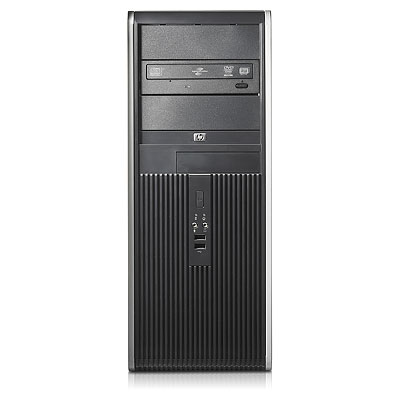
Lo and Behold my new Whitebox!!

HP DC 7800 Desktop with 8gb RAM 250gb HD Sata drive, running ESX3i and as quiet as a kitten.

Price-wise:

HP Dc7800 DC E6550 - $630
4x2gb Kingston KVR800D2N5 - $176
Intel Pro 1000/MT - $30 (that is because the on-board Intel NIC refused to work!)
250GB HD - $60

Total for the Whitebox $900 (But in all honesty, since I work as part of the IT group, the only thing that was actually purchased was the Desktop, all other hardware was provided through our department)

I have already put up 3 machines on it, two that I work with daily (1 Ubuntu,  1 Windows 2003 Server) and the 3rd one is a test for Windows server 2008 R2 Beta which I am trying out.


Thanks to Eric Sloof for the inspiration for the post. (did not come out as cheap as his though..)

2009-01-17

Veeam FastSCP 3.0 for ESX/ESXi Public Beta

It is finally out.

The biggest addition to this Beta is the fact that it works with ESX3i.

Get it here

2008-12-30

ESX3i, Enterprise Virtualization and should it be installed on an Atari

Well the Atari part is because of a post on PlanetVM, but seriously though the question is should ESX3i be installed on non-HCL machines? Here are my 2 cents (or agurot in local currency).. Yes and no.. Decisive don't you think? Yes
  • It gives people the chance to test out what ESX can do. The capabilities, the features, limitations and benefits.
  • It is free, so why not use it.
  • It can run off of a USB stick, so it will run on pretty much anything...
  • It does work when installing it on all sorts of hardware. I have personally installed it on all kinds of desktop computers HP and IBM.
  • It will increase exposure for VMware and in turn their market share when people learn that the product is the best thing since bread and butter.
  • Because by nature technical people like a challenge, so installing on non-supported hardware, is challenging, and seeing the amount of posts, sites and blogs that are busy with this means that people like the challenge.
  • It makes a wonderful platform for POC, testing or just playing around.
  • If I can install Hyper-V on any hardware I would like, then why not ESX?
No
  • IT IS NOT SUPPORTED BY VMWARE!!! - Let me elaborate on this one. ESX abides to a strict HCL. Sometime I personally think that it is too strict, and that is only because of lack sufficient testing on other hardware. But that means that VMware has employees that their job is to sit and install ESX on each platform and see that it works properly. There is a lot of hardware out there, and it changes constantly so the HCL is a game of keeping up with the never ending amount hardware that is released each year.
  • Even if you can install it on your old ZX Spectrum , does not mean that you should. I mean the software was meant to perform at a certain level. So installing it on something like this - it kind of defeats the purpose.
  • Most of the features available do not come with the free product. (write with RCLI [OK temporarily it does - oops!!], HA, DRS, VMotion and that kind of Jazz)
  • When someone fails to install it they come to the forum, bad-mouth, complain and waste most of our time with silly questions to which most them the answer will be..
    This hardware is not supported on the HCL so ........
  • The forums are becoming high traffic with all kinds of stupid questions (and for the life of me I cannot find the post in the forum that talks about it, when I do I will update the link)
So what is is the conclusion? I would say a Yes actually. Go for it, get it working. Get to know the product, and you will see that it is well worth your while. But.... remember you are working on unsupported hardware, so there is only a limit to how much support you will get from your peers, you will not receive any support from VMware at all.

2008-12-15

Comparisons... Comparisons....

Ahh..... Come On!!!!!!!!! VMware vs Hyper-V comparison. Jason and Scott have said more than enough on the matter. People should get their facts straight!!!!

2008-11-22

Clearing the connection list of your VI client

That small drop-down list on the IP Address/Name fiels can get a bit cluttered after you start working with a large amount of servers and start a lot of testing. So how do I clear the list you may ask?

HKEY_CURRENT_USER\Software\VMware\VMware Infrastructure Client\Preferences

Remove the entries you want from the list and hey presto!!!

Thanks for the info Duncan

2008-11-14