
Showing posts with label Whitebox. Show all posts

2010-01-21

Adding ESXi as a standard Operating System

Lately I have been asked more and more to install an ESXi system on a whitebox. Why you may ask - because users (we are a R&D company) are asking to have a box with multiple operating systems with all kinds of configurations for testing purposes.

Now of course the ideal would be to say, "Sure, no problem! Let me deploy a VM for you!" But seeing that the infrastructure that our ESX farm resides on (Servers, Network, Storage) is a hell of a lot more expensive than $700 PC. And in that PC you can stuff a 500GB disk, 8gb RAM, and a Dual (sometimes Quad) Core Processor. That is more than enough to run 4-5 VM's on it without any issue.

Not every OS, needs to run on the Central infrastructure! I mean the cost involved regarding maintenance, licensing backup etc. etc. do not justify having every single OS on the main vSphere Farm. I know some of you will disagree, but that is my opinion. Each company has its policies regarding what is backed up, how often, and under what SLA things need to be maintained.

Now seeing that more and more of my users using VMware products in their daily tasks, be it VMware Player, Workstation, Server, and as of late the vSphere infrastructure client - they are familiar with the environment, they have a decent foundation of what virtualization does, and how it works.

So why add ESXi? Today deployed images that we use are including almost every version of Windows and multiple flavors of Linux (RH, Centos etc.)

We already have VMware images for all of the above OS's - way long ago. We saw this coming so we prepared the VM's of all the OS's.

Most of the Brand-Name PC's (IBM/Dell/HP) will run ESX4i out of the box without too much customization, and if the customization was needed, the hours invested were well worth it

Taking all of the above into account we found that building a custom CD of ESXi with some of our own additions, would provide a good solution to the growing need for a multiple OS computer.

The points that were covered:

  • The License is free!
  • Installation of ESXi takes less than 7 minutes
  • These VM Operating Systems did not need peripheral devices (sound/USB)
  • Images were optimized (size/performance)
  • We added a Administrative user to each ESXi installation (customized in the image) for support
  • All ESXi deployments were added to a monitoring system (Veeam Monitor Free Edition)

True there are limitations to the solution, and it will need to evolve. One of the things that I am actively looking at is the PXE deployment of ESXi.

In past to give a user a multiple OS machine - would take more than 4 hours, including deploying Main OS, installing VMware software (player/workstation/server) and then adding the VM image.

Today, deployment of ESXi and multiple images - is done in less than half of that time.

I would like to hear your thoughts and ideas on this one…

2009-11-25

"Need have have" - revisited

If you remember about 6 months ago I wrote an article about the fact that hot add of any kind of virtual hardware in the free free version of ESXi. I thought I would revisit the problems I had now that Update 1 was released last week.

The host has been upgraded to ESX4i Update 1

image

I took a Windows 2008 Guest OS.

image

Firstly, I noticed - CPU Hot plug was not available. Regarding memory Hot Add - I did have the option to turn on / off.

I powered on the machine. And started my journey again to add a new hard disk to the VM while it was powered on.

image

image

Edit Settings -> Add -> yada yada yada….. (you know the drill…)

I did not receive any errors

image

And Lo and Behold:

image

Tried the same with a second NIC

image

And Lo and Behold:

image 

Last thing I tried - (you remember the memory/CPU hot-add from before.

This is not a feature that is offered with the free version of ESXi - but what the heck - the option was there, so I figured I would try it.

image
image

And I got shot down - as expected:

image

The questions I asked my previous article were:

  1. The error message of course is not very well phrased - and I would love to know what "need have have" is?
  2. Why in heaven's name would you take away the most basic functionality that has been in every single VMware product (besides Player) for the past 5 years? VMware? Please tell me that was a mistake?

So as you can see, the first has been fixed, and William Shakespeare will no longer be turning over in his grave.

Regarding the second one, I guess VMware realized the mistake, and have remedied the situation that arose with ESX4i. Thank you for correcting the problem

And of course - the removal of the above mentioned hardware (HD and NIC) works on a live machine as well.

Hope you enjoyed the ride!

2009-07-28

Install ESX on your Laptop - I had a Crazy Idea

And so this started today with a Twitter post. If you know it or not I am a big enthusiast of trying to install ESX on all kinds of hardware - especially Whiteboxes that are not on the HCL. I have tested it on a number of HP, Dell and IBM desktops. The great thing about this is - it mostly works, it is completely not supported, but a lot of fun to do. But to lug around with a desktop to present demos, is not always the most convenient thing in the world - to put it mildly.

What-if (or as you would say it in Powershell -whatif) you could create a system, that has a full demonstration environment of multiple VM's - and all of this on your LAPTOP!

So I looked around on the Web and found a few mentions of people who have done this. What kind of problems they ran into and what was possible or not. The consensus is to Install a Base OS, Workstation on top of that, ESX as a VM, and then VM's onto that ESX VM. The consensus about this as well was "IT IS AS SLOW AS A TORTISE!". ESX on bare metal should be much much faster,

So my adventure started with this:

  1. Lenovo T400 Laptop 267812G - Intel Core2 Duo T9400 2.53GHz with 2GB RAM
  2. ESX4i build 171294

The laptop:

DSC00145

Started out in the BIOS, enabled Intel VT

DSC00147

SATA was set as AHCI

DSC00148

And off we go

DSC00149 DSC00150 DSC00151 DSC00152

Install Screen

DSC00153

Recognizes the Disk

DSC00154

And 4 minutes later

DSC00156 

All hardware detected out of the box - Network card included

Next was to connect to the laptop with the VI client.

2009-07-28_1611  
2009-07-28_1614_002 2009-07-28_1616 2009-07-28_1614 2009-07-28_1614_001

Now all I have to do is find out why I cannot power on a machine. Every time I started a VM the laptop froze - completely! Hard reboot and the machine came back up OK but the VM was no longer registered.

Have to look into that further

Hope you enjoyed the ride.

2009-06-30

ESX4i build 171294 - released

From a query on the VMTN forums, I found this one.

It seems there has been a release (very very quiet one… sshhhh..) from the original GA code version 164009.
It now seems there are two versions of ESX4i floating around now.


ESX4i

ESX4i Free 

164009 171294


There are no release notes for the new version, so I do not know if anything changed.

Feelers are out on Twitter - for more info. If I have any new info I will update this post.

Update 1- Found another post on the forums with the same build number.

Update 2 - Host Update Utility would not upgrade a ESX4i build 164009 vm

upgrade_fail

So I built a new VM with the new VMware-VMvisor-Installer-4.0.0-171294.x86_64.iso

171294_1

Now to see what has changed.

Update 3 - a quick check of what was reported in this post have not been fixed in this release.

2009-05-27

Hot Add and "Need have have"

One of the new features that were added to ESX4 is Hot-Add. What this feature does it allows you to add additional RAM or vCPU to your VM (if the operating System supports it)

Like any good vAdmin - I have upgraded my personal ESX box to Version 4. This is a whitebox with ESX3i installed.

Upgrade process was pretty simple as you can see in this previous post.

So if you noticed in my previous post after installing your license is a 60-day Evaluation with all the bells and whistles like below

The option of ESX4i - Free version - is available for up to 999 CPU's all you have to do is just ask.

image

So I requested a license key and after receiving the mail from VMware I proceeded to enter my license. Now we all knew that when entering the free license key in ESX3i you lost some functionality - like VCB - Virtual Center Agent etc. But for ESX 4i when changing the license - You lose a lot more in comparison - and I was shocked to find out how much.

clip_image001[4] clip_image001[6]

One of the wonderful things you can do with ESX VM's is resize the VMDK's - it is a simple

vmkfstools -X 30G /<…..path to …. >.vmdk

And voila your vmdk just grew to the size you asked it to. So now you boot up your VM (for arguments sake - let's say it is a Windows 2003 Server) and you now have the extra space but in this case this was the system volume which cannot be extended while the system is live.

So the solution to this one is :

  • Extend the volume
  • Add the vmdk to a running Windows 2003 Server (while it is powered on)
  • diskpart
  • rescan
  • select disk 1 (of course the number may vary)
  • select partition 1 (same as above)
  • extend
  • Power off of this VM
  • Remove the disk
  • Power on the first VM again and hey presto you have a full partition including the extended space you just created.

Now this is all fine and wonderful - and it all relies on the fact that we expect that we can add resources to a running machine (namely HD / NIC - those are the ones that I use the most). This can be used in a large amount of scenarios - such as the one I had today - I had a lock on a file that I just could not get rid of. So I tried to do the same thing:

  • Power off the VM
  • Add the VMDK to another running machine
  • remove the lock
  • but …. hold on I could not !

I ran into this error:

10169817

ESX claims that I am trying to hot add a resource - which in all honesty is completely true.
I was. A vmdk.

So i wanted to check was this connected to the serial number I just changed before hand. So of course changing the license back to evaluation version I could add the hard disk without any issue. So I changed the license back and tried the same with adding a network card.

And yep you guessed correctly - same error message.

  1. The error message of course is not very well phrased - and I would love to know what "need have have" is?
  2. Why in heaven's name would you take away the most basic functionality that has been in every single VMware product (besides Player) for the past 5 years? VMware? Please tell me that was a mistake?

Update 30/05/2009

I have started a thread on the VMTN forum with this question but have as yet to hear any concrete response from VMware. The only shocking thing I found that if this is a licensing issue - then we are all in for a bigger surprise! The minimum, license level that you use Hot-Add is Advanced.

How do you like them apples?

2009-01-23

Exporting Virtual Machines to another computer

A potential client (hopefully will be a major client in the future) came to me with a requirement to consider ESX3i as their next platform for a stand-alone lab (x30). The major setback at the moment was the ability to easily export VM's from one Lab to another. They needed to exprt the image off of host relatively often. Now why they were not using ESX in the first place and why they are continuing not to do so, and why they would not go for an enterprise solution, that is a whole different story, which I will not get into. And neither why ESX does not really compare to Xensource.

They are using Citrix Xensource 3.2 - which is a quick Right-click -> Export ... Choose your location -> Save.

Since each VM is something like 40gb in size, this can be a very time consuming process.

So they started out by trying with thick disks (40GB) and to transfer that kind of a disk over the network can take mmmmm.... quite a while..

Not acceptable!

They went for Thin-disks (yes - I know that it sucks performance-wise..). Well when we created the disks it showed the size of 40GB on the VM's settings, when ls -la on the Console (yeah yeah not supported - I know..) but when looking at it through the Datastore Browser - lo and behold - 8GB in size, exactly what we were expecting.

So we tried to move the VM off of the Host, with the Virtual Infrastructure Client GUI, with WinSCP, with ssh, with FastSCP, we all go the same results (as was expected), as soon as the files was exported off, it grew to 40GB in size, and therefore took too long to export the VM.

Again Not acceptable!

So what was left, and I have Edward again here to thank for reminding me, the export feature.

Aha!!

In the VIC, when the machine is powered off, when you select your VM and then from the top Menu, File -> Virtual Appliance -> Export, you have the option to Export the VM out to any location accessible from your computer. Me be the skeptic I am, I thought that it would not make much of a difference in size and time, but I was wrong.

Test 1: Export VM with 40GB Thin disk to local C: drive
Time to completion: 12 minutes
Size of OVF: 1.2 GB

Test 1: Export VM with 40GB Default Thick disk to local C: drive
Time to completion: 15 minutes
Size of OVF: 1.7 GB

So not only do they have their export feature, not only are the VM image sizes manageable, not only is the timeframe more than acceptable, the disks will stay Thick by default which I am sure will improve the performance, and also make Edward happy.

So, perhaps I have convinced the client that ESX3i is more than a suitable and worthy candidate that will match and even improve on that feature from Xensource any day (not to mention almost any other feature as well). And if all goes as I hope, we will have another happy client that will benefit from using ESX, and in the future they will go with the product they are supposed to be using the first place - VMware Lab Manager.

2009-01-18

My new ESX3i Whitebox

So I finally got around to installing a box for myself to play around with at work.

Of course I do not want a noisy server running under my desk (I am sure that my co-workers in the room would not be too happy with it either..) so I had to go for something quieter..


Lo and Behold my new Whitebox!!

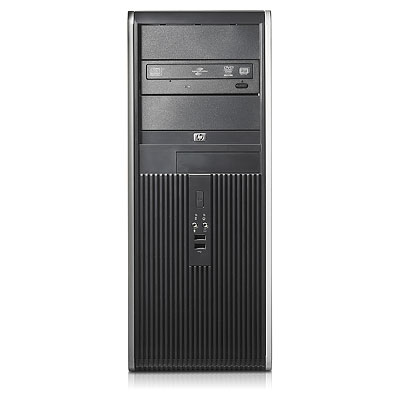
HP DC 7800 Desktop with 8gb RAM 250gb HD Sata drive, running ESX3i and as quiet as a kitten.

Price-wise:

HP Dc7800 DC E6550 - $630
4x2gb Kingston KVR800D2N5 - $176
Intel Pro 1000/MT - $30 (that is because the on-board Intel NIC refused to work!)
250GB HD - $60

Total for the Whitebox $900 (But in all honesty, since I work as part of the IT group, the only thing that was actually purchased was the Desktop, all other hardware was provided through our department)

I have already put up 3 machines on it, two that I work with daily (1 Ubuntu,  1 Windows 2003 Server) and the 3rd one is a test for Windows server 2008 R2 Beta which I am trying out.


Thanks to Eric Sloof for the inspiration for the post. (did not come out as cheap as his though..)