Showing posts with label Converter. Show all posts

2013-03-13

VMware vCenter Converter Standalone 5.1 Beta

First and foremost I would like to express my public gratitude and thanks to legendary Ulli Hankeln,
the Master of Converter and VMDK/VMFS disk dissection/recovery for sticking with this and bugging VMware to make the proper changes to thisConverter Standalone 5.1 Beta product.
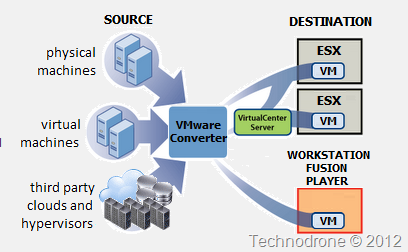
After being in a private Beta for a while - it is now open to the public

From the Release Notes

What's New

The VMware vCenter Converter Standalone 5.1 Beta includes the following new functionality:

  • Support for virtual machine hardware version 9
  • Guest operating system support for Microsoft Windows 8 and Microsoft Windows Server 2012
  • Guest operating system support for Red Hat Enterprise Linux 6
  • Support for virtual and physical machine sources with GUID Partition Table (GPT) disks
  • Support for virtual and physical machine sources with Unified Extensible Firmware Interface (UEFI)
  • Support for EXT4 file system


Converter Standalone 5.1 Beta is known to have the following issues:

  • You cannot upgrade an existing installation of Converter Standalone to Converter Standalone 5.1 Beta. Before you install Converter Standalone 5.1 Beta, uninstall any earlier versions of Converter Standalone and delete any remaining Converter Standalone server database files from your system.
  • You cannot convert physical SLES 9 sources, if the root directory is located on an LVM disk. You need to convert the LVM disk to a basic disk.
  • Virtual machines cloned from RHEL6 and SLES 11 sources have no network connectivity. After the conversion is complete, you need to reconfigure the network settings on the destination virtual machine manually.
  • Virtual machines cloned from SLES 11 SP1 sources boot in console mode. After the conversion is complete, you need to recreate the xorg.conf file.

You can download the product here

Now if only they would bring back the cold clone CD (wishful thinking..)

2011-08-01

VMware vCenter Converter to be Retired

Who uses vCenter Converter? Well I do.

So I have some bad news for you. It looks like the built-in converter plugin which was part of vCenter 4.x will be no more.

vCenter 4.1 Install

This is screen shot from the Beta

vCenter 5.0 Install

This I used for performing the import of VM's into the my Virtual Infrastructure right from the vSphere client as in the screenshot below.

Converter Plugin

But this is all going away.

Release Notes

I will still use the Standalone version (5.0 is in Public Beta) but this feature will be missed (at least by me).

2011-05-30

Converting a Linux Machine fails during /var clone

I was having some difficulty with the conversion of a Linux machine. Every time I tried to import the machine it would fail at about 19%.

So two things I wanted share with you today.

  1. If you are using the integrated vCenter Converter (which you should.. ) then you can monitor the results of the conversion from the vSphere client itself.
    If you right click on the task you will get a view summary option. Here you can monitor the conversion and get the history of prior attempts as well.

    image
  2. This is what I was getting during the conversion

    image

    So Mr. Google was my friend as usual (or at least I thought so) which brought me to KB1026348:
    Redhat 4 conversion fails or the virtual machine does not boot after successful conversion

    I tried step 4. which worked fine. there were no errors in the /var/log/messages file either.

    I admit this had me stumped for a while. I have done several of these conversions (today as well) without any issue before so Enable Retention of Sparse Files During Linux Conversions (1008303) was not appealing - it required a restart of the service and RedHat's tar bug fix update did sound right either.

    So after searching a bit more I came across this thread. Now my solution was not exactly the one that was presented there but in my case it was an abnormal amount of files in  the var partition.

    I had found 148371 files that were located in /var/spool/clientmqueue/. It seemed that sendmail had barfed all over itself and had gone whacko.

    After removing all those files - I was able to import without an issue.

    image

2010-09-12

Converter 4.3 - Throttling

In my previous post about Converter 4.3 - My First Impressions - I mentioned a new feature called Throttling which was introduced in the new version.

So what does it do? You can limit the amount of resources that will be used by the Conversion Task.

I would like to clarify two things about throttling:

  1. This is only valid for Windows Machines this has no effect for Linux.
  2. The throttling is not done one the ESX host.

You can use throttling in two different scenario's

  1. Conversion of a Powered on Windows OS
    In this case the throttling occurs on the source machine being converted - minimizing the resources used by the conversion process.
  2. Conversion of a Powered off Windows OS
    In this case the throttling occurs on the machine where you are running the converter application - minimizing the resources used by the conversion process as to not interfere with the regular operation of the OS.

Why would you want to do use throttling? Because a conversion task competes for computing resources with other processes. To limit the impact of the conversion task on other workloads, you can throttle the task. If you do not throttle conversion tasks, they are carried out with normal priority and depending on the available computing resources during conversion.

Lets give an example.

Case 1 - Powered on OS - The throttling is performed on BIG_SERVER

image

Case 2 - Powered off OS - The Throttling will occur on SMALL_CLIENT

image


The CPU throttling drop-down menu, has 3 options

None - The priority of the current conversion task is set to normal.

Light - The priority of the current conversion task is reduced slightly below normal.

Medium - The priority of the current conversion task is set to lowest.

You can also throttle the maximum network bandwidth that will be used during the conversion

You cannot throttle disk I/O from the Converter Standalone interface, but by changing the network bandwidth indirectly will have an effect on the Disk I/O


It will be interesting to see numbers on what the difference is.. From a capture of a conversion, I did not see the process changed to a lower priority

image

2010-09-06

Converter 4.3 - My First Impressions

There are a few changes to note with the new Converter version.

You can now import Hyper-V Machines Directly

image

There is a new Throttling feature (More about that in an upcoming post)

image

You can now define a cluster as a destination for your conversion - I guess DRS will sort out where to place the VM.

image

As opposed to

clip_image001

And Last But not Least. It is blazing fast. Give it a spin…

Great Job VMware!!

2010-08-31

VMware vCenter Converter New Releases

VMware vCenter Converter Standalone 4.3 | 30 Aug 2010 | Build 292238

Release Notes - VMware vCenter Converter Standalone 4.3 User's Guide

What's New

The VMware vCenter Converter Standalone 4.3 includes the following new functionality:

  • Support for VMware vSphere 4.1 as source and destination targets
  • Support for importing powered-off Microsoft Hyper-V R1 and Hyper-V R2 virtual machines
  • Public API and sample code for submitting and monitoring Converter jobs
  • Support for importing Windows 7 and Windows 2008 R2 sources
  • Ability to throttle the data transfer from source to destination based on network bandwidth or CPU
  • IPv6 support

Discontinued Support

  • Support of the following operating systems is discontinued:
    • Windows 2000
    • Windows NT
  • Support for OVF format is discontinued
  • Support for VCB image sources is discontinued
  • Linux installation support is discontinued

In addition there is a new SDK that was made available

vCenter Converter Standalone SDK

The VMware vCenter Converter SDK is a programmatic interface to manage the conversion operations. The API is exposed as a Web service running on vCenter Converter server systems. The SDK includes comprehensive documentations as well as Java and C# samples that demonstrate common use cases for programmatically managing VMware VCenter Converter. Support Information: vCenter Converter SDK is a forum supported only SDK.

The Converter Standalone SDK includes the Converter Standalone API and Java and C# samples that demonstrate features of Converter Standalone server. The Converter Standalone SDK enables developers to evolve their applications to support new server features while maintaining compatibility with older server versions.

I guess this will be one of many new releases this week. Stay tuned…

2010-08-05

Linux vs. Windows Live Conversion

I have been entrusted with converting a large number of Virtual machines that are currently hosted on Xen Server into the VMware Infrastructure.

There are all sorts of ways of migrating these a virtual machine exporting to VMDK's, Xen can export to a VMDK, convert to an OVF, other tools etc. I have found that the easiest way for the conversion is to treat the XEN VM as a live machine.

Besides all the different other lessons I am learning regarding the ins-and-outs of Xen Server  and their virtual machines, and all kinds of gotchas that you need to prepare for (look out for them in the upcoming blog posts). During the testing of the process, I noticed something quite interesting.

So the Xen VM is running either RHEL 4 / RHEL 5 / Windows XP / Windows 2003.

Importing Virtual machines directly with the vCenter Enterprise Converter is supports Windows targets only.

So in order to simplify the process and not have to use two different tools and procedures, I went with the vCenter Converter Standalone 4.0.1 for both flavors.

I will not put you through the steps on how to convert the live machine - you can actually refer to this post from a quite a while back.

Once the conversion starts - a new VM is created - as per your input, but this is where it differs.

A Linux conversion. The VM is powered on, connected to the network, booted with the helper ISO and the conversion begins. Creation of the partitions and copying them over one by one. Here are the screen shots of the converter and the details of the process in the vCenter as well.

image

image

And now a windows conversion. The VM is created but not powered on. The copy of the data actually takes place directly into the VM without having to use the Helper VM. Look at the screenshot below.

image

I find this quite interesting because I it seems that the conversion is occurring somehow in the background without having to use the helper VM. And even more so - if this can be done for a windows VM - why can this not be done also with a Linux VM?

I would be very interested in hearing if you have any more insight as to what happens in the background during the Windows Conversion.

Hope you enjoyed the ride.

2010-03-28

Inject VMware drivers into Source OS before P2V

P2V a machine - who does not want to get rid of all their physical machines to get the rid of the old hardware? If so raise you hand!

So now that we have that out the way - P2V'ing a Windows 2000 Operating System is not always as straight forward as a the other operating systems.

Take into account the following scenario. you have a Windows 2000 SP6 Server running a customized app. You start the Convert process, either using Converter Standalone - or the Guided consolation plug-in. You let the process run - and anything from 45minutes to  hours later - you have a new VM registered in you virtual infrastructure.

Yey! - But - the conversion process - reported as failed somewhere between 97-99%.

The VM - is there so you power on the VM - and BAM! Blue Screen!!!

  • STOP 0x7B INACCESSIBLE_BOOT_DEVICE

or

  • STOP 0x0000007B INACCESSIBLE_BOOT_DEVICE

And of course I could not boot the converted machine.

This brought me to this KB article on VMware's site - which provided this solution
Injecting SCSI controller device drivers into Windows

Before you convert the virtual machine you should perform the following on the source OS.

All Windows Versions (vmscsi only)

To copy the appropriate disk controller driver from a working virtual machine with a Windows guest operating system:

Download the VMware SCSI Disk Controller driver diskette here.

Copy the contents of the floppy either by mounting it or extracting the files

Right-click vmscsi.inf and click Install. The VMware SCSI drivers are installed.

Restart the source machine to complete installation.


Windows XP / 2000 / NT (buslogic and vmscsi)

Find a working VM installed with the same OS. Export these 3 registry keys.

HKEY_LOCAL_MACHINE\SYSTEM\CurrentControlSet\Services\BusLogic

HKEY_LOCAL_MACHINE\SYSTEM\CurrentControlSet\Control\CriticalDeviceDatabase\
pci#ven_104b&dev_1040

HKEY_LOCAL_MACHINE\SYSTEM\CurrentControlSet\Services\vmscsi

(Note
: The vmscsi service registry key may not exist if VMware Tools is not installed on the virtual machine.)
Import these 3 registry keys onto your source machine.

Perform your conversion


Windows 2003 (lsilogic and vmscsi)
Find a working VM installed with the same OS. Export these 3 registry keys.

    HKEY_LOCAL_MACHINE\SYSTEM\CurrentControlSet\Services\symmpi

    HKEY_LOCAL_MACHINE\SYSTEM\CurrentControlSet\Control\CriticalDeviceDatabase\
    pci#ven_1000&dev_0030

    HKEY_LOCAL_MACHINE\SYSTEM\CurrentControlSet\Services\vmscsi

    (Note
    : The vmscsi service registry key may not exist if VMware Tools is not installed on the virtual machine.)

    Import the registry keys onto your source machine.

    Restart the source to complete installation.

    Perform another conversion with VMware Converter.

    Now will this be needed every time? No! I have performed many a P2V on all of the above Operating Systems - without any problems at all and without injecting the registry keys beforehand. But for the case that the conversion will fail  - this should help you out immensely.

    Personally -  I would make this best practice and inject the drivers in by default.

    2010-02-16

    Is 100mb Enough for the Service Console?

    It is accepted practice amongst most of the virtualization world that you can use a 100mb/s link for your Service Console port, because there is not much traffic that is flowing over that link.

    Well in the majority of the cases that is true.

    For example. vmnic0 is running the Service Console. This link is connected at 1000mb/s

    image

    As you can see in the screen shot there is nothing really running through the Service Console (vmnic0)

    But how about this

    image

    Now you would (and should) most definitely ask what is running through vmnic0 that is causing that amount of traffic.

    It is not a Backup agent, no VMkernel on vmnic0 either. It was a regular virtual machine import.

    image

    A bit more of an explanation. How often does it happen that you are asked to import a virtual machine from somewhere?  A virtual appliance? A new image that has to go onto the ESX?

    When importing a virtual machine into an ESX host, the traffic goes directly through the service console and it's vmnic.

    As you can see that amount of traffic can easily surpass 100mb/s.

    But if you have the option of only running a SC on 100mb/s then you will have to take into account the virtual machine imports will take longer - they can take much.. much longer if you run multiple simultaneous imports. I do not know what impact it will have on the other traffic that has to run on the Service console. I do not know of any QOS on ESX that will ensure that some kind of traffic is more important than others.

    Finding a 100mb/s NIC is something that you will have to go on a treasure hunt for - we are at the time and age that a 1Gb is default and soon 10Gb will become the norm. the issue here is not the NIC - it is the switchport. Not everything can run on 1Gb end-to-end, so here is your limitation.

    Solutions?

    1. Run your SC on 1Gb
    2. Share your SC with other ESX Network components (Vmkernel / VM Traffic) and lower the level of security for your ESX
    3. Create an aggregate to widen the "pipe"
    4. Run your SC on 100mb/s and take into account that virtual machine imports will take longer

    Thanks to Tom Howarth, Scott Lowe, Roger Lund, Dave Graham, Mike LaSpina and Tommy Hall for joining in on the discussion.

    2010-01-13

    Always look at your OS versions.

    This evening I started to create a Windows 2008 R2 Template for my environment.

    I created the VM with the assistance of this walkthrough adding my own tweaks along the way.

    I then tried to import the VM into my vCenter Server and was presented with an error:

    Unable to Determine the Guest Operating System. 

    Going into the Converter log on the client I found this row:

    P2VError UNABLE_TO_DETERMINE_GUEST_OS()

    When creating the VM it was on a ESX 4i U1 Host and I chose the option for Server 2008 R2

    image

    I was trying to import the VM into a ESX 3.5 host where as you can see the version is different:

    image

    I changed the version on the template to Windows Server 2008 (64-bit) and the import went fine.

    I will change it to the correct version - after all the ESX Hosts are at ESX 4 U1.

    2009-08-24

    What Happened to Export a VM in ESX4i?

    I have been meaning to blog about this for a while so hear it is.

    One of the features I used in ESX3i was the option to export a VM once it was powered off. This made the option of moving a VM off a stand-alone host to different Storage on different hosts a very easy process.

    In ESXi 3.5

    image 

    And save it anywhere on your local Drive

    image

    But for some reason this has disappeared from ESX4i.

    image

    The option is grayed out.

    The only way to export a VM from a standalone host is to use VMware Converter.

    This was done on a stand-alone host - without vCenter, virtual machine was powered off using a free license.

    Anyone know why this was removed?

    2009-01-27

    Converting a Linux Virtual Machine With an LVM

    I was entrusted with the task to try and migrate a VM from Xen 3.2 to ESX. Well you would think that is a trivial task - it should be. But let us not forget that we are talking here about version 3.2, which is two generations back from the current Citrix Xensource which is in use today. After successfully migrating it I would like to share with you the procedure. This was done on a Xen Guest VM runnning Red Hat Enterprise Linux ES release 3 (Taroon Update 7) Disk Layout was two disks, hda and hdb. The second disk was configured as part of a an Logical Volume as you can see below
    [root@xxxx root]# fdisk -l Disk /dev/hda: 26.8 GB, 26843545600 bytes 255 heads, 63 sectors/track, 3263 cylinders Units = cylinders of 16065 * 512 = 8225280 bytes Device Boot Start End Blocks Id System /dev/hda1 * 1 61 489951 83 Linux /dev/hda2 62 322 2096482+ 82 Linux swap /dev/hda3 323 453 1052257+ 83 Linux /dev/hda4 454 3263 22571325 f Win95 Ext'd (LBA) /dev/hda5 454 1236 6289416 83 Linux /dev/hda6 1237 1497 2096451 83 Linux /dev/hda7 1498 1758 2096451 83 Linux /dev/hda8 1759 2019 2096451 83 Linux /dev/hda9 2020 2280 2096451 83 Linux /dev/hda10 2281 3263 7895916 83 Linux Disk /dev/hdb: 26.8 GB, 26843545600 bytes 255 heads, 63 sectors/track, 3263 cylinders Units = cylinders of 16065 * 512 = 8225280 bytes Disk /dev/hdb doesn't contain a valid partition table [root@XXXXXX root]# lvscan lvscan -- ACTIVE "/dev/OracleVG/lvol1" [10 GB] lvscan -- ACTIVE "/dev/OracleVG/lvol2" [5 GB] lvscan -- 2 logical volumes with 15 GB total in 1 volume group lvscan -- 2 active logical volumes
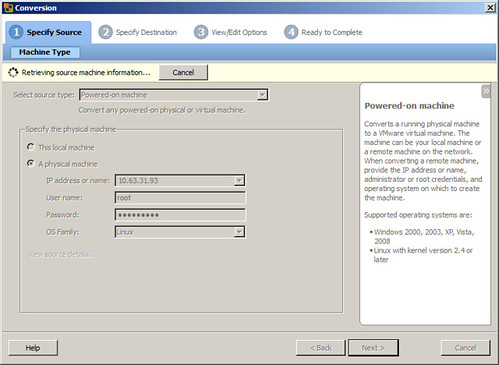
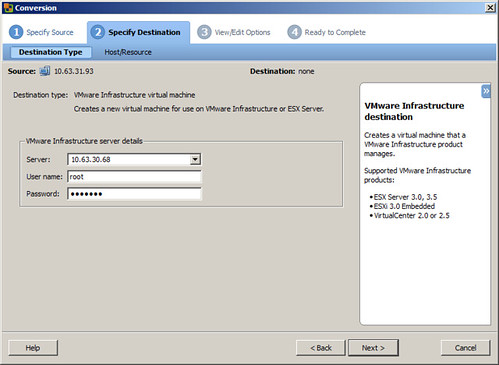
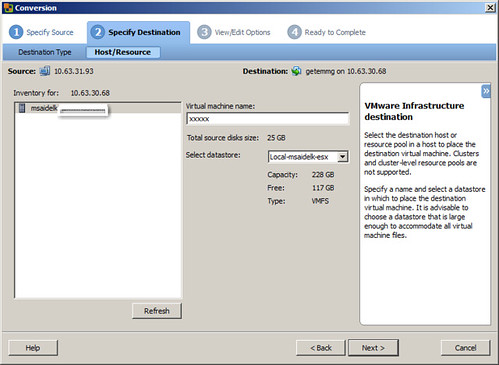
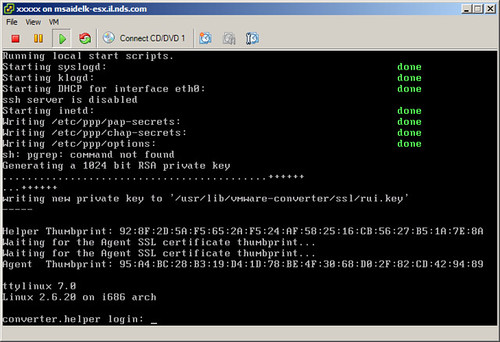
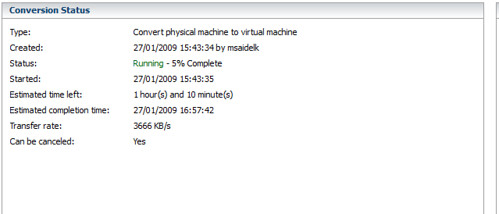
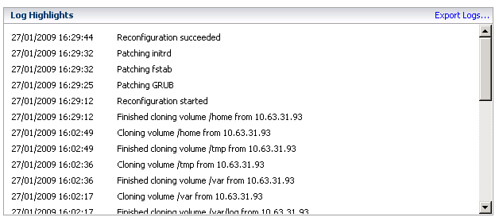
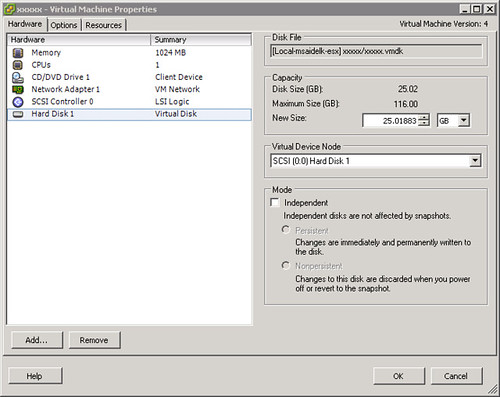
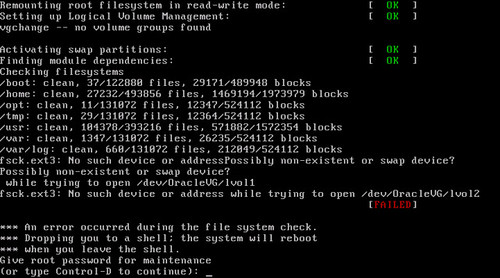
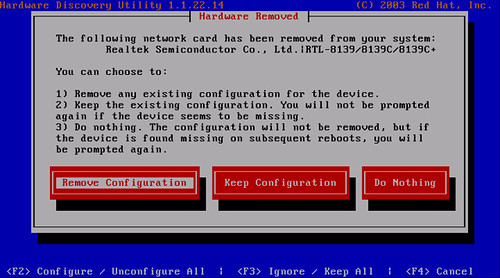
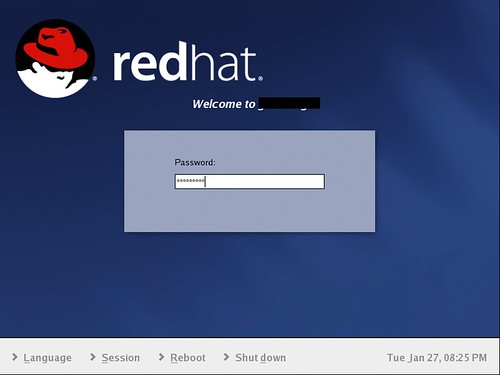
    Fired Up VMware Converter version 4.0 Beta and started the import as if the machine was a powered on physical machine Source info Destination info And when we get to the options you as you can see below the Data to copy is missing a drive We continue with process of the import. The way the new converter works with a live Linux machine - it uses a helper VM. What it does is, it creates a VM on your ESX, powers it up and loads a Linux ISO (don't know which one) to act as a mediator for the cloning process. This VM has to be able to receive an IP from a DHCP server otherwise the process will not work. This is a picture of what is hapenning inside the console of the helper VM: Time for conversion - Load on Host - Completed The configuration of the new VM on ESX as you can see only had one drive. Powered on the VM and this is what I got. The OS would not come up because it was missing the second part of the volume. Entered the Root Password
    vi /etc/fstab
    Uncommented the mount points for the LVM and restarted.
    /dev/OracleVG/lvol1 /oradata/[folder] ext3 defaults 1 2 /dev/OracleVG/lvol2 /oraback/[folder] ext3 defaults 1 2
    Kudzu kicked in to recognize all the new hardware, LSI Scsi card, NIC and VGA. Machine came up GUI and all - like it should have. But I was missing the 2nd drive of course.
    [root@XXXXX root]# fdisk -l Disk /dev/sda: 26.8 GB, 26863764480 bytes 255 heads, 63 sectors/track, 3266 cylinders Units = cylinders of 16065 * 512 = 8225280 bytes Device Boot Start End Blocks Id System /dev/sda1 * 1 61 489951 83 Linux /dev/sda2 62 322 2096482+ 82 Linux swap /dev/sda3 323 453 1052257+ 83 Linux /dev/sda4 454 3263 22571325 5 Extended /dev/sda5 454 1236 6289416 83 Linux /dev/sda6 1237 1497 2096451 83 Linux /dev/sda7 1498 1758 2096451 83 Linux /dev/sda8 1759 2019 2096451 83 Linux /dev/sda9 2020 2280 2096451 83 Linux /dev/sda10 2281 3263 7895916 83 Linux [root@XXXXX root]# lvscan lvscan -- no volume groups found
    Added a 2nd Drive identical to the first and rebooted and got my second drive
    [root@XXXXXX root]# fdisk -l /dev/sdb Disk /dev/sdb: 26.8 GB, 26865020928 bytes 255 heads, 63 sectors/track, 3266 cylinders Units = cylinders of 16065 * 512 = 8225280 bytes Disk /dev/sdb doesn't contain a valid partition table
    Now comes the fun part: [source_ip] = old Linux Machine From the Destination (i.e. the new VMware VM we just created) run the following command:
    ssh root@[source_ip] "dd if=/dev/hdb" | dd of=/dev/sdb
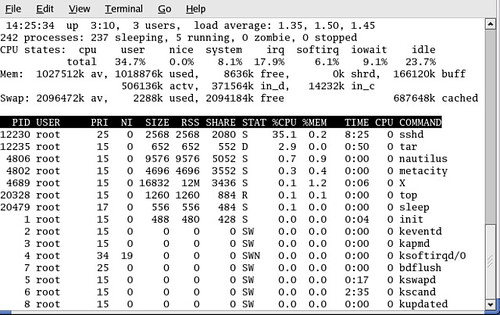
    And then wait.... The only thing you will see is on the source that sshd is using resources, no other indications.
    PID    USER PRI NI SIZE RSS   SHARE STAT %CPU %MEM TIME CPU COMMAND 16482 root  25  0   2152 2152 1628 R 13.1 0.2                0:03 0     sshd
    Once that was done (took about 2.5 hours for a 20gb Disk) Got this in the end
    52428800+0 records in 52428800+0 records out 52428800+0 records in 52428800+0 records out
    Removed the comments that I made previously in /etc/fstab and another reboot And up she goes...
    [root@XXXXX root]# fdisk -l Disk /dev/sda: 26.8 GB, 26863764480 bytes 255 heads, 63 sectors/track, 3266 cylinders Units = cylinders of 16065 * 512 = 8225280 bytes Device Boot Start End Blocks Id System /dev/sda1 * 1 61 489951 83 Linux /dev/sda2 62 322 2096482+ 82 Linux swap /dev/sda3 323 453 1052257+ 83 Linux /dev/sda4 454 3263 22571325 5 Extended /dev/sda5 454 1236 6289416 83 Linux /dev/sda6 1237 1497 2096451 83 Linux /dev/sda7 1498 1758 2096451 83 Linux /dev/sda8 1759 2019 2096451 83 Linux /dev/sda9 2020 2280 2096451 83 Linux /dev/sda10 2281 3263 7895916 83 Linux Disk /dev/sdb: 26.8 GB, 26865020928 bytes 255 heads, 63 sectors/track, 3266 cylinders Units = cylinders of 16065 * 512 = 8225280 bytes Disk /dev/sdb doesn't contain a valid partition table [root@XXXXX root]# lvscan lvscan -- ACTIVE "/dev/OracleVG/lvol1" [10 GB] lvscan -- ACTIVE "/dev/OracleVG/lvol2" [5 GB] lvscan -- 2 logical volumes with 15 GB total in 1 volume group lvscan -- 2 active logical volumes
    and of course GUI and all